Two rooms, three practitioners: avoiding double booking
A calendar that only knows practitioners checks that the practitioner is free, not the room. An example of three practitioners sharing two rooms, and Calendrio's Equipment setting, with screenshots.
An online calendar that only knows the practitioners checks that the practitioner is free. It does not check that the room is. That is where double booking comes from in a practice with several people: three practitioners, two rooms, and on Thursday at 10:30 a.m., a third client turns up for a room that does not exist. Since November 23, 2026, Calendrio can count your rooms, booths and machines, so you can avoid double booking a room without thinking about it.
Avoiding double booking a room: what the calendar cannot see
Take Maison Équilibre, an imaginary practice. Léa is a naturopath, Karim a sophrologist, Inès a reflexologist. There are three of them, but the practice has only two treatment rooms and a single reflexology chair. It also has a large room for workshops.
On Thursday, Léa sees a client for an assessment at 10:00 a.m. in one room. Karim has a sophrology session at 10:00 a.m. in the other. Inès has nobody. For a calendar that only looks at people, Inès is free: her page offers 9:45 a.m. and 10:30 a.m. for a 45-minute reflexology session. A client books 10:30 a.m. She arrives, and both rooms are taken.
It is not Inès's fault. The problem is what the tool counts: people, not rooms.
Thursday, 10:00 a.m.: the same page, before and after
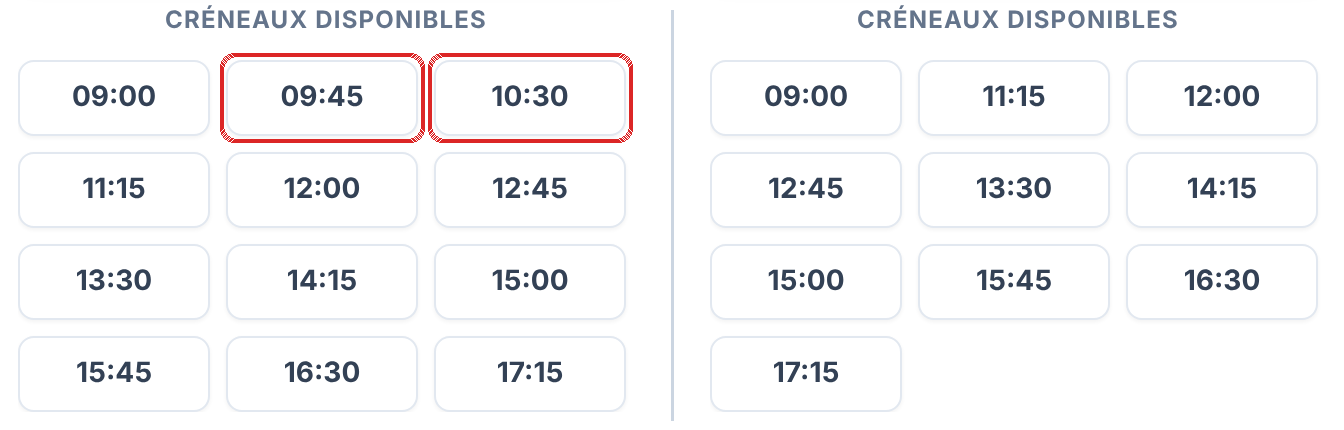
Nothing else has changed: same opening hours, same appointments. The only difference is that Calendrio now knows that reflexology needs a treatment room, and that the practice has only two. The client does not see why a time is missing. She only sees the times that really work.
Describing a room or a machine, step by step
The setting is in Settings, in the “🧰 Equipment” card (“Matériel” on the screenshots) in “Advanced settings” mode, or under each service, in the “🧰 Equipment needed” block. Only the account administrator can change it. For each room, booth or machine, you enter:
- The name, which only you see: “Treatment room”, “Booth 1”, “Facial device”…
- Units available: how many sessions can take place at the same time. Two identical rooms means 2.
- People per session: 1 most of the time, 2 for a duo booth. An appointment for more people takes one more unit.
- The services that need it, to tick.
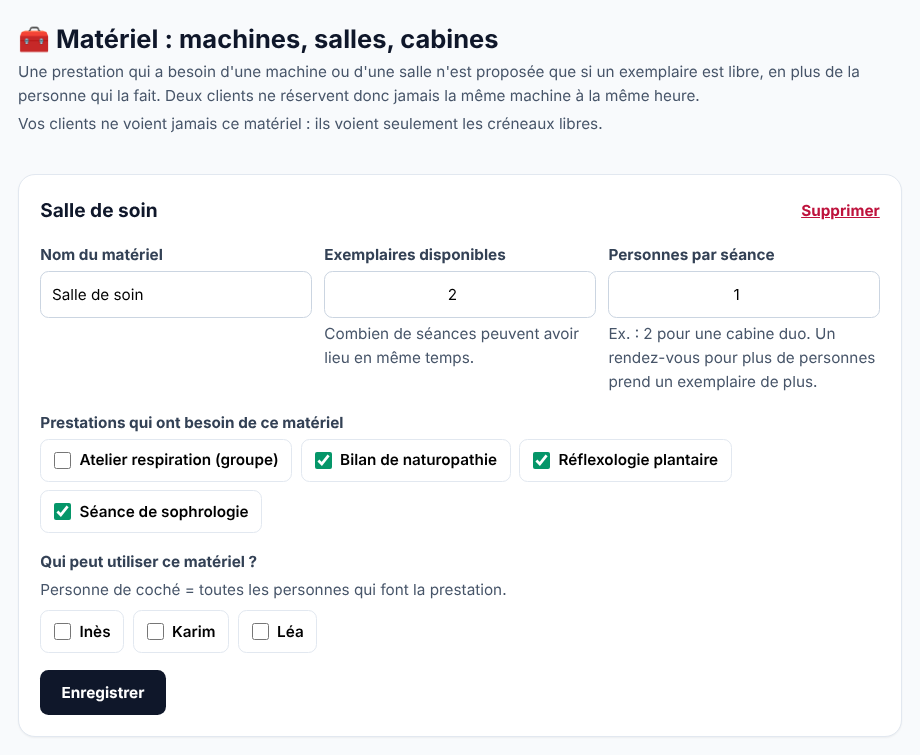
At Maison Équilibre, Léa, who manages the account, creates “Treatment room”, sets 2 units and ticks the assessment, sophrology and reflexology. A time slot is then offered only if a room is free for the whole session, in addition to the person giving it. A service can need several things: reflexology needs a room and the chair. Both must then be free.
Appointments already booked count right away: as soon as reflexology is linked to the room, its upcoming appointments take up a room.
A chair that only Inès uses
The “Who can use this equipment?” box is for when several people offer the same service, but a device requires training or belongs to someone. Inès brought her own reflexology chair: Léa ticks Inès, and only her. If a colleague offers reflexology one day, it will not be offered to clients: reflexology needs the chair, and only Inès can use it. If nobody is ticked, everyone who offers the service can use it.
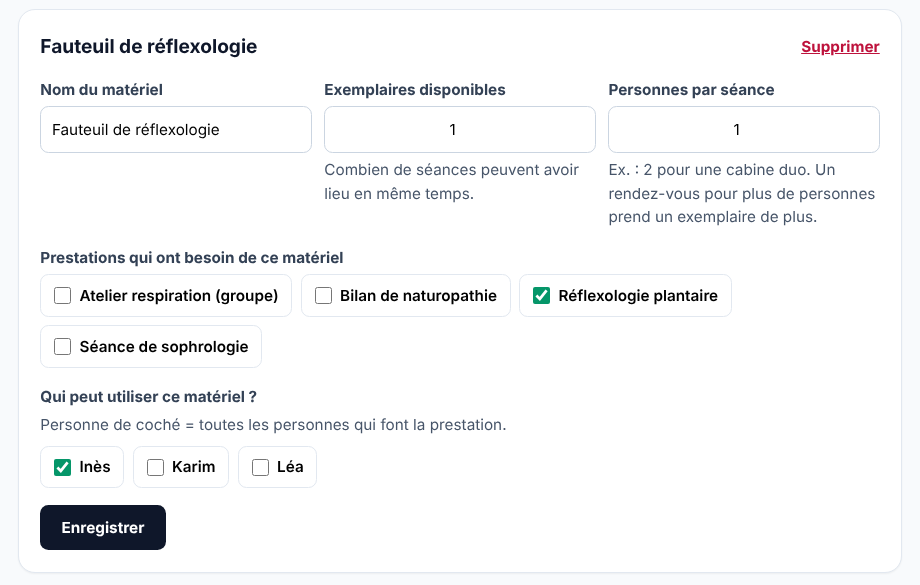
If nobody can perform the service with this equipment any more, no time slot is shown. This is intended: better no time than an impossible one.
Group workshops: one room, several participants
Karim runs a breathing workshop for up to 6 people in the large room. The workshop is a service with “Max places” set to 6. Léa creates “Large room (workshops)” with 1 unit and 6 people per session. Participants in the same workshop, at the same time, share the room. With 4 participants, 2 places remain: a request for 2 people goes through, a request for 3 is declined.
Was your machine a team “member”?
Before this setting, some practices added their device as a fake team member so that it would block sessions. It only half worked: the device took up a spot in the team, and the confirmation email could show its name to the client, as if it were a practitioner.
At the bottom of the Equipment page, the “Turn into equipment” button makes the change in one go. The equipment is created with 1 unit and linked to the same services. Appointments already booked are kept, and the fake member leaves the team. If anything fails along the way, nothing is changed.
What the setting does not do
- It works within a single account. If each practitioner has their own Calendrio account, connected to the others through linked accounts, one person's equipment blocks nothing for the others. To share rooms, you need to work in one team account. Linked accounts are explained in a shared calendar for a practice with several practitioners.
- An appointment added by hand is never refused. When you add it yourself, Calendrio lets you, even with no free room. It then does occupy the room for the following bookings.
- The client does not choose the room. They never see the equipment: not on the page, not in the emails. Calendrio does not tell you which room to use either: you sort that out on site.
- “Groups & Spaces” sessions do not take it into account. For a workshop to occupy a room, create it as a service, with “Max places” above 1.
- The break between appointments does not protect the room. It blocks the practitioner's calendar, not the equipment: a colleague can take the room as soon as the session ends. To air the room or change the linen, add that time to the session length.
The Equipment setting is included in all plans. To bring several practitioners together in one account, you need the Team plan (€79 excl. VAT per month, 5 people included), the Business plan or the trial. The details are on the Pricing page.
Who it is for
For any place where an object limits sessions more than people do: a beauty salon with a single facial booth, a practice with more practitioners than rooms, a center with one unique device. The other features for your profession are gathered on Calendrio for wellness practitioners.
Don't have Calendrio yet? Create your account with this link: 3 months free for any sign-up made through this link until November 30, 2026, no credit card required.
— The Calendrio team
Frequently asked questions
How do I stop the same room from being booked twice?
Do my clients see the name of the room or machine?
Do I need a paid plan?
Can a service require a room and a machine at the same time?
What happens to appointments already booked?
What if your calendar filled itself?
With Calendrio, your clients book online 24/7 and receive automatic reminders. 1-month free trial, no credit card required.
Try Calendrio for free