New: your showcase page collects visitors' emails, sends your gift and follows up for you
Most visitors to a page don't book on their first visit. Your Calendrio showcase page now offers them a gift in exchange for their email, sends it in your name, creates their card in My prospects and, if you turn it on, sends a sequence of three emails that stops as soon as they book.
You share your showcase page, an ad brings you visitors… and most of them leave without booking. It's not that they aren't interested: they just aren't ready yet. Until now, Calendrio kept no trace of these people. That's what this new feature changes: your page can collect its visitors' email addresses in exchange for a gift, send that gift in your name, create their card in My prospects and follow up for you, without you having to do anything in the evening.
This article follows one visitor, hour by hour, on a naturopath's page (demo account, fictional data), then says frankly what the feature doesn't do. If you don't have a page yet, start by creating your showcase page: the new feature is added on top of it, on every plan, including the free plan.
How do I collect the email addresses of visitors who don't book right away?
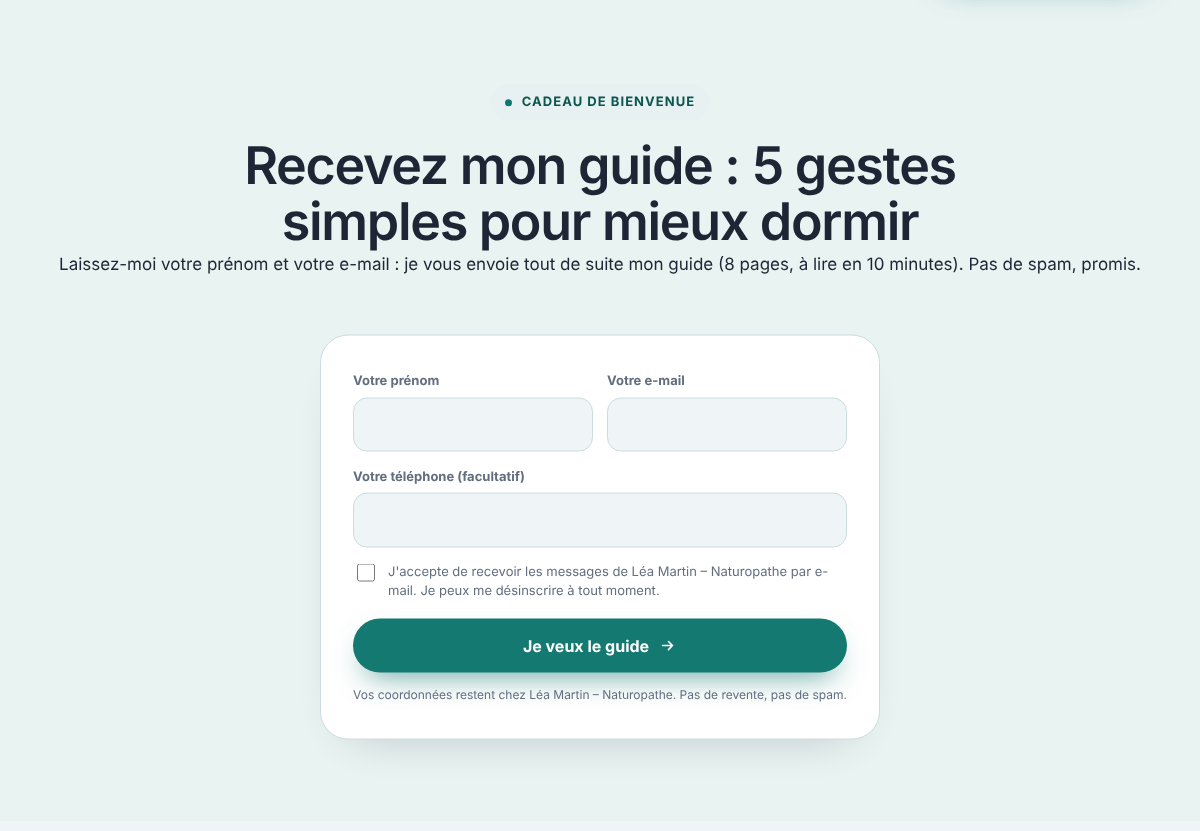
By offering them something useful straight away, in exchange for their first name and email: a short guide, a video, a checklist. That's the "Welcome gift" block on your page. The person fills in two fields, ticks the consent box, and three things happen within a second: they receive your gift by email, you receive an email with a link to their card, and they see a thank-you page you've written. None of this requires an extra tool or a sending address to set up.
Before / after: Léa's page, naturopath
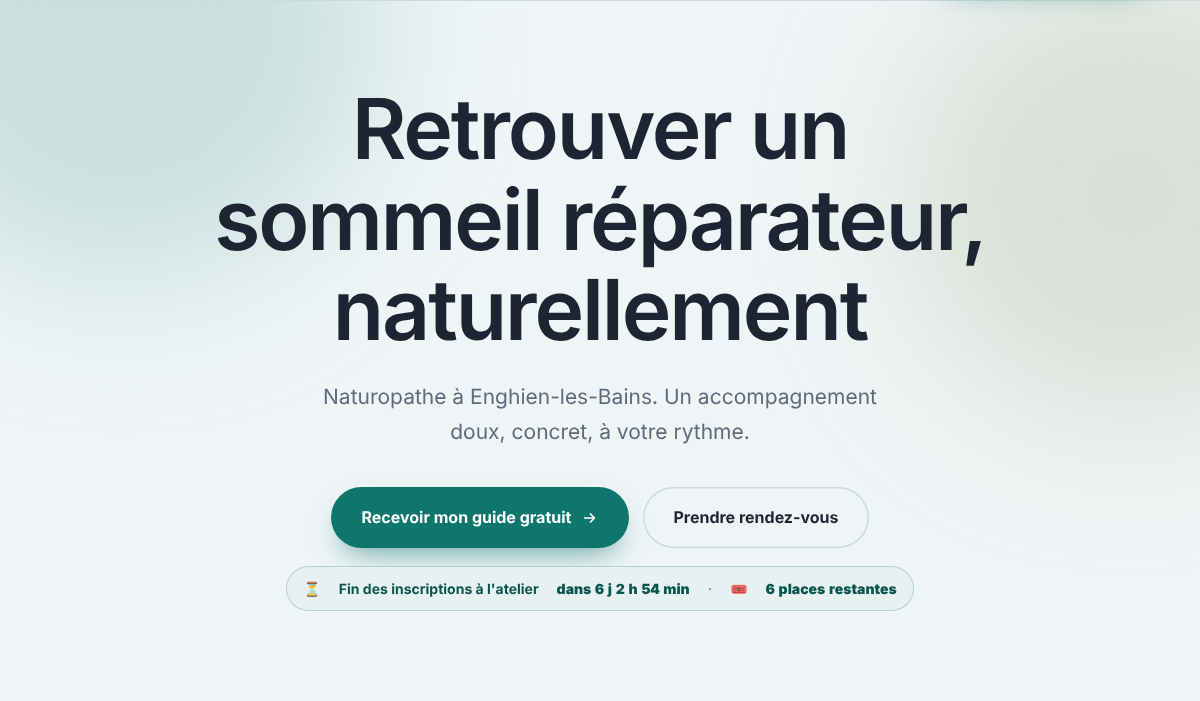
Léa sees clients in Enghien-les-Bains. She shares her page in her Instagram bio and in a neighbourhood group. Before: let's say, over one week, 40 views, 6 clicks on the button and 1 appointment. All the other visitors left without a trace. After: the big button on her page leads to the form, with an 8-page sleep guide as a gift. People who leave their email receive the guide, then, over the following days, three short emails signed by Léa. Those who book, or whose card Léa marks as "Replied", receive nothing more. And Léa finds each of them, with their first name and the date of their visit, in My prospects.
These figures are made up for the example, not a promise: your page will have its own, shown under its link in Settings (views, clicks, emails left, appointments, by source).
A visitor's journey, hour by hour
Tuesday 9:10 pm — she leaves her email
Camille (fictional name) comes across Léa's page from Instagram. She doesn't feel like booking on a weeknight, but the guide interests her. She types her first name and email, ticks the box "I agree to receive messages from Léa Martin – Naturopath by email. I can unsubscribe at any time." and clicks. A thank-you page appears, with a "Book an appointment" button that she ignores for now.
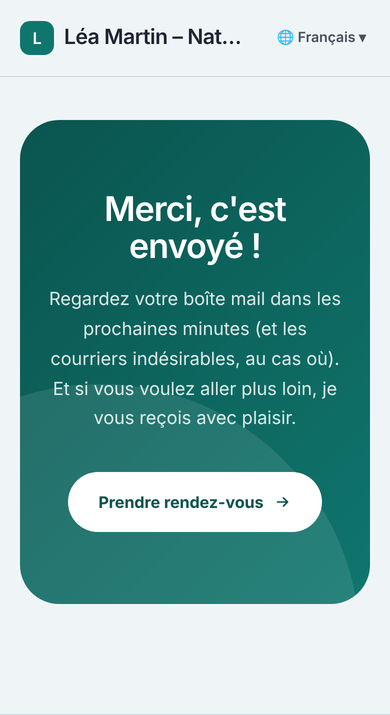
Tuesday 9:10 pm — the gift arrives, the card exists
Within the same minute, Camille receives an email in the name of "Léa Martin – Naturopath", with the email design Léa chose (her colours, her logo), a "Discover my gift" button leading to the guide, and a link to book an appointment. If she replies to this email, her reply lands in Léa's inbox, not at Calendrio. On her side, Léa receives an email: first name, email, phone if given, page name, where the visit came from, and a "View their card" button. The card is already in My prospects, with the status "Contacted" and a follow-up reminder in five days.
Wednesday 10 am — first email in the sequence
Léa has turned on the email sequence. The next day at 10 am, Camille receives a short email: "Yesterday you left your email on my page: thank you for your trust. If you have a question, just reply to this email…" This text is suggested by Calendrio; Léa can write it her own way, with the person's first name, the name of her practice and her town as variables.
Friday 10 am — second email, then the third the following Tuesday
On day 3 and day 7, two more emails follow, always at 10 am, always in Léa's name, always with the booking button. The last one says it clearly: this is the last automatic message. If Camille books on Thursday, the Friday and Tuesday emails don't go out. If she clicks "Stop receiving messages", a page asks her to confirm (a single click isn't enough, so that email providers' bots don't unsubscribe anyone), then everything stops and her card says so.
The next morning — Léa's summary
Around 8 am, Léa receives a single email on days when something happened the day before: emails left on her page, replies from prospects, results of her campaigns, visits to her pages, each line with its own button. Nothing the day before: no email. This morning summary exists for every account; it can be turned off with one click at the bottom of the email.
What you set up, and where
- The form: in your page editor (Settings → My showcase pages → Edit my page), tick "Email form" in the bottom bar and paste the link to your gift (a PDF, a video…). Without a link, the person receives a welcome email with your booking link. The title, text, button and thank-you page are edited directly on the page.
- The big button: it can lead to the form ("to the email form (gift)") rather than to booking. The "Book an appointment" button stays next to it.
- The email sequence: "Email sequence" button in the bar. Three emails at most, the sending day of each (day 1 to day 60), the subject and the text. The suggested texts go out as they are, in the visitor's language; yours are automatically translated for a visitor from abroad.
- The video: paste a YouTube or Vimeo link; a thumbnail appears above your key points and the player, in its cookie-free version, only loads on click. Before the click, only the thumbnail image is loaded (from YouTube for a YouTube video; nothing for Vimeo).
- The countdown and the spots: a real date (end of an offer, of registrations) and a real number of spots, shown under the button; the countdown disappears on its own once the date has passed. If your button leads to registration for a webinar, the session date and its remaining spots appear by themselves, calculated from actual registrations.
To find out whether one version of a page works better than another, duplicate it ("Duplicate" button under the page), change just one thing, share both links, and look at the "Compare my pages" table: views, clicks, emails left, appointments, and appointments per 100 visits.
The framework: consent, unsubscribing, data
The consent box is mandatory and is never ticked in advance (the CNIL, France's data protection authority, states that "pre-ticked boxes that allow the person's consent to be presumed are not permitted"). The CNIL points out that "the prior consent of individuals is required for commercial messages sent to private individuals" and asks: "Systematically offer a way to unsubscribe in every message" (the golden rules of email prospecting, consulted on 26/10/2026). That's what the form does: explicit consent, a "Stop receiving messages" link in the gift and in every email of the sequence, and one-click unsubscribe from Gmail and the email services that offer it. Contact details stay in your Calendrio account and are not resold. The only exception, which you control yourself: if you've connected your ads and the visitor accepted the banner, their email is sent hashed (unreadable) to Meta, TikTok or Google to count the sign-up (see below). Your specific situation (what you send, and to whom) should be checked against the rules that apply in your country or with a lawyer.
What it doesn't do
- No double opt-in: the person doesn't receive a "click to confirm" email before the gift. Bots are kept out in other ways (honeypot field, minimum delay, limit per connection), and a real person who makes a mistake (missing field, box not ticked) sees a clear message and can try again.
- The sequence doesn't "know" that someone has replied, unless your mailbox is connected to Calendrio (Calendrio Prospecting): otherwise, when someone replies to you in your email, switch their card to "Replied" (one click) and the emails stop. The email you receive each time someone leaves their address reminds you of this.
- No SMS in the sequence: emails only.
- The gift is a link: Calendrio doesn't host your PDF or video. Put it on your website, a file-sharing service, YouTube or Vimeo.
- Events sent to your ads (Meta "Lead", TikTok "Contact", Google Ads) only go out for a visitor who came from an ad and accepted the banner, and with a paid plan or the trial: see measuring your Facebook and Instagram ads.
What next?
The form fills My prospects; the email sequence takes the first step. The rest of the journey — appointment, deposit, reminders, client follow-up — is described in building a sales funnel when you work by appointment, and the features for your profession are on Calendrio for wellness practitioners.
Don't have Calendrio yet? Create your account with this link: 3 months free for any sign-up made through this link until 30 November 2026, no credit card required.
— The Calendrio team
Frequently asked questions
How do I collect the email addresses of visitors who don't book right away?
Is the email form included in the free plan?
What does the person who leaves their email receive?
Does the email sequence stop when the person books an appointment?
Can I write my own follow-up emails?
Is the countdown a real countdown?
What if your calendar filled itself?
With Calendrio, your clients book online 24/7 and receive automatic reminders. 1-month free trial, no credit card required.
Try Calendrio for free