Free professional landing page: create yours without a website
You don't need a website to present your business: a page in your name, with your photos, your offer and a booking button, is enough to get started. Here's how to create it in Calendrio, and what it doesn't replace.
For a practitioner or self-employed professional who works by appointment, a free professional landing page is often enough to get started: a single page, in your name, that says who you are, what you offer and how to book. In Calendrio, it's called a showcase page. It's included in every plan, including the free plan, and you edit it directly on the page, with no code.
This guide follows Léa, a fictional naturopath based in Enghien-les-Bains, on the evening she creates her page. You'll also see what this page doesn't replace, so you can tell whether a full website will be useful to you later.
Do I need a website to present my business?
Not to get started. What someone discovering you wants to know comes down to a few things: what you do, where and how, at what price, whether they can trust you, and how to book. A well-filled page answers all of that. A full website becomes useful when you have a lot to publish or want your own web address.
| Calendrio showcase page | Full website | |
|---|---|---|
| Cost | Included in every plan, including the free plan | Often a subscription to a website builder or a web designer, plus a domain name |
| Setup | A page already filled with examples, which you edit | Choosing a tool, a template, then building the pages one by one |
| Address | A Calendrio link in your name (calendrio.fr/landing.php?pro=…) | Your own domain name |
| Booking | The button leads straight to your booking page | Needs connecting: a "Book" button or an embedded calendar |
| Content | One page per offer, with no menu between them and no blog | As many pages as you like, blog, menu |
If you already have a website, keep it: the showcase page is then used for a specific offer or an ad, and your website gets a "Book" button (see below).
Creating your free professional landing page: Léa's evening
Léa offers a 90-minute vitality assessment, at her practice or by video, followed by follow-up sessions. Her clients find her through word of mouth and Instagram, where until now she only had a bare booking link. She wants a page that reassures people before their first appointment.
8 pm: she opens her page, already filled in
In Calendrio, Léa goes to Settings → "My showcase pages" and clicks "Edit my page". The first time, the page opens already filled with examples: a badge, an "About…" title, a "Discovery session" offer. All that's left is to replace each text with her own: one click on a text lets her write it, one click on 📷 changes a photo. The template, colour, button and going live are set in a bar at the bottom of the screen.
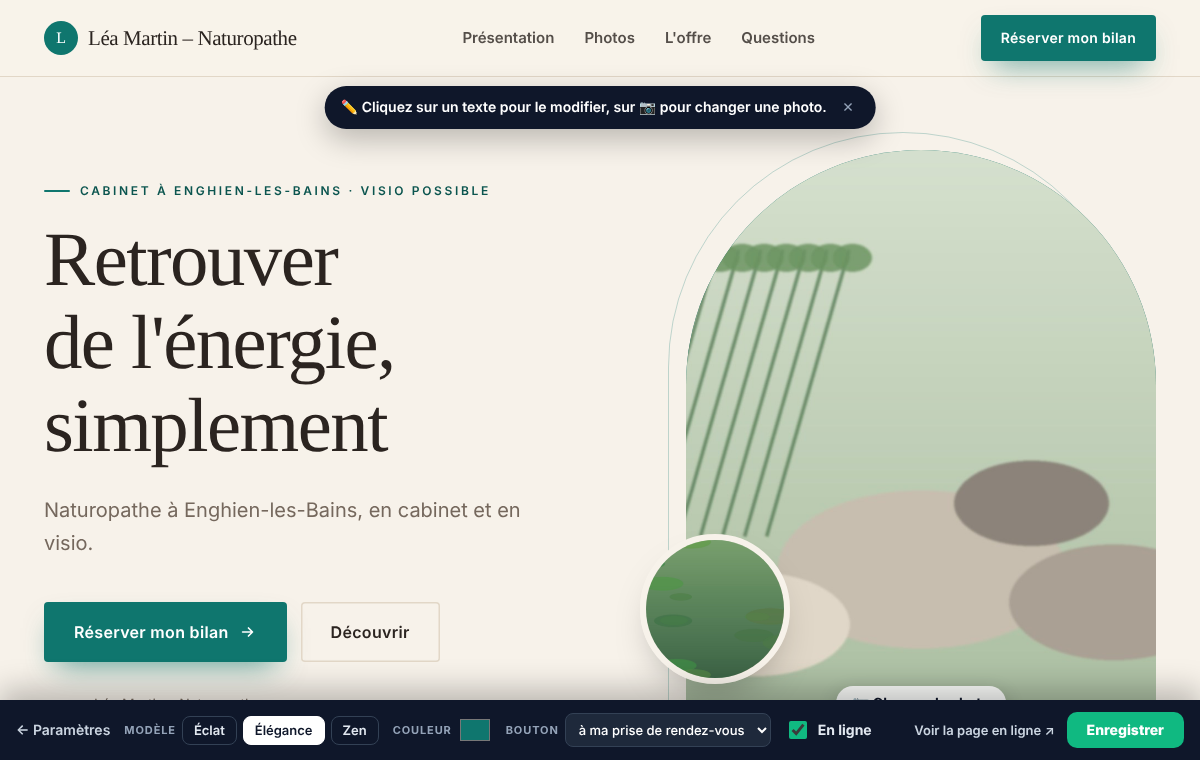
First, she chooses the look of the page. Three design templates are available: Éclat (large full-screen photo, white text), Élégance (cream background, refined headings, arched photo) and Zen (soft, rounded shapes, very airy). Léa picks Élégance and the colour of her logo. Switching templates loses nothing: the text and photos stay the same.
8:15 pm: the photos
A large photo at the top, a photo for "About" and a gallery of up to 8 photos, uploaded from a phone or computer (JPG, PNG, WEBP or GIF, 8 MB maximum each). Léa shows her practice, the waiting room and the herbal tea she serves at the end of a session. Photos of the place and of you are often more reassuring than a stock image.
8:30 pm: the text
The headline states the benefit in a few words; the subheading says who you are and where you see clients. The key points (up to 6) explain how you work. The steps (3) describe how a first appointment goes; the FAQs (up to 8) answer what people ask you on the phone. If you leave the key points, steps or questions empty, neutral texts are shown in their place; it's better to write your own.
The FAQs are also the place to set out the limits of your profession. Léa adds one her clients often ask: "Does naturopathy replace a doctor? No, it complements medical care, never replaces it." In the rest of the page, she describes what happens during the assessment rather than promising a result.
Reviews (up to 6) and key figures (up to 4) can also be added, but only if you write them yourself: Calendrio never invents any, and these blocks stay hidden as long as they're empty. Only use genuine client reviews, with their consent.
9 pm: the offer
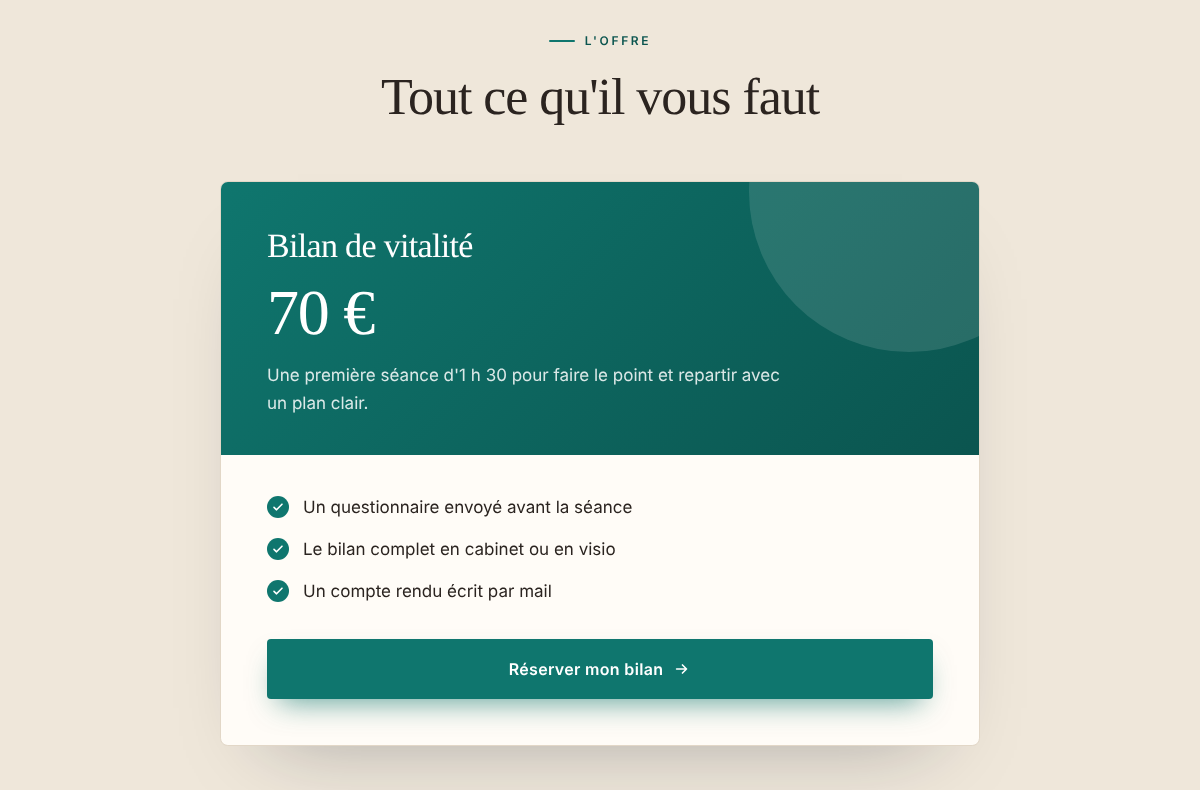
The "The offer" block shows a title, a price, a sentence and the list of what's included. The price is free text: an amount, "from", or "Price on request". The price that counts at payment time remains the price of your service in Calendrio: write the same one, to avoid any surprises.
9:15 pm: the button, then going live
The main button is set in the bottom bar. It can lead to your appointment booking, to "join my team" (a sign-up to Calendrio, useful if you recruit sellers; tracking recruits depends on your plan), to another link of your choice, or, if you have an upcoming webinar, to its registration. Léa keeps appointment booking and labels it "Book my assessment".
As long as the "Online" box isn't ticked, nobody can see the page: you can prepare it at your own pace. Léa ticks the box and clicks "Save"; the "View the live page" link appears next to it, so she can check. In Settings, her page now carries the "Online" label and a "View ↗" button, next to "Copy the link".
What a client sees on her phone
Your clients will often open your link on their phone, from Instagram or WhatsApp. The page adapts to the screen; on a phone, once past the header, the booking button stays visible at the bottom of the screen, right up to the page's final call to action. When Léa shares her link, on WhatsApp for example, the preview shown by the app normally uses her headline, subheading and large photo.
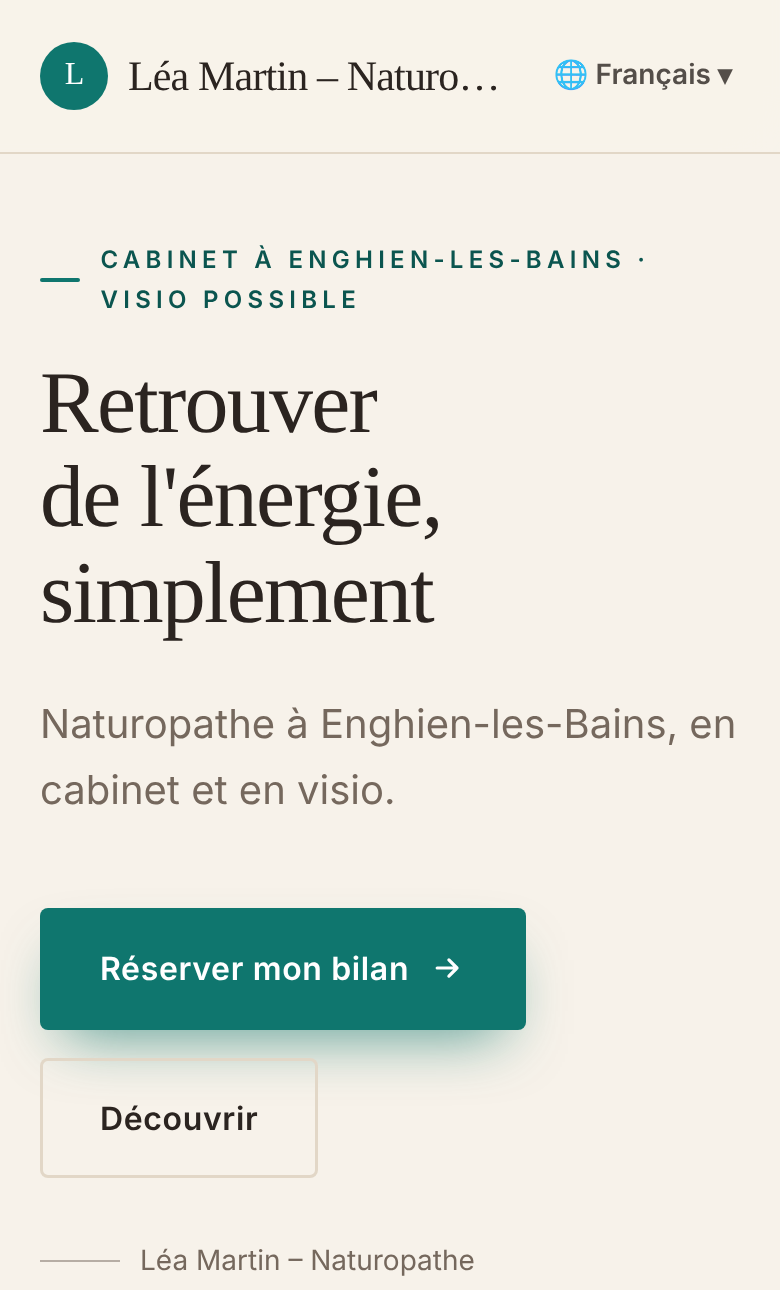
A client from abroad can choose her language at the top of the page, from those Léa offers: her texts are automatically translated. Léa can correct each translation, or turn off automatic translation in Settings → Languages. The button leads to the booking page, where the client chooses her service and her time slot.
One page per offer, audience or event
The main page is your shop window. Alongside it, you can create up to 20 other pages, each with its own link, template and button. In "My showcase pages", type the name of the page (for example "Sleep workshops") and click "Create the page": it opens already filled with examples. Léa prepares one for her group workshops and one for an Instagram ad.
- The link of an additional page uses its name; if you delete the page, that link stops working.
- If you change your business name, Calendrio offers you a new link ("Update my link" button); once the link is updated, the old one redirects to the new one, for all your pages.
- For a Facebook or Instagram ad, the page can be used as the destination. Once the connection is set up in Settings, Calendrio reports to Meta the page views, bookings and payments of visitors who arrived through one of your ads and accepted the banner (paid plans and trial).
Where to share the link
A page is only useful if people find it. Léa puts her link in her Instagram bio, her WhatsApp status and her email signature. To go further, the article 9 places to share your link gives the full list. If you have a website, the Embed page provides a "Book" button or a calendar to paste in, and a WordPress plugin.
What's new: email form, video, countdown, comparing two pages
Since this guide was published, the page has gained new features:
- An email form with a welcome gift: the person leaves their first name and email in exchange for a guide or a video, receives the gift in your name, lands in My prospects and sees a thank-you page you write; a sequence of three emails can follow and stops as soon as they book. The page's big button can lead to it.
- A YouTube or Vimeo video above your key points, loaded only on click.
- A countdown and remaining spots under the button, based on a real date and a real number that you set (or, for a webinar, calculated from actual registrations).
- Duplicate a page and compare its figures (views, clicks, emails left, appointments per 100 visits) with those of another version.
All of this is described, with screenshots, in your page collects visitors' emails, sends your gift and follows up for you.
What the page doesn't do
- It doesn't have your own domain name: the address remains a Calendrio link.
- Pages aren't linked to each other by a menu, and there's no blog.
- It doesn't sell products: the button leads to your sessions, to "join my team", to a link, to a webinar or to the email form.
- There's no dedicated section for legal notices. In France, a business website must display them, according to the official public service page (consulted on 25/10/2026), and a public page presenting your business may be concerned. Check the rules that apply to you on that page or with a lawyer; you can write your identification details in the "About" text or in an FAQ.
- On the free plan, the "Page created with Calendrio" notice appears at the bottom of the page; it disappears with a paid plan and during the trial.
- In a team account, only the administrator can edit the pages.
What next?
The showcase page is only the start of a client's journey. For what comes next (booking, deposit, reminders, follow-up), read building a sales funnel when you work by appointment. The other features for your profession are gathered on Calendrio for wellness practitioners.
Don't have Calendrio yet? Create your account with this link: 3 months free for any sign-up made through this link until 30 November 2026, no credit card required.
— The Calendrio team
Frequently asked questions
Do I need a website to present my business?
Is the showcase page really free?
Can I use my own domain name?
How many pages can I create?
Do I need to know how to code or be a designer?
What if your calendar filled itself?
With Calendrio, your clients book online 24/7 and receive automatic reminders. 1-month free trial, no credit card required.
Try Calendrio for free