Online booking link: 9 places to share it and fill your schedule
A booking page is only useful if your clients find it when they want to book. Google listing, social media, email signature, store window, voicemail: here's where to put your online booking link, and how to present it so people click.
You have a booking page, your time slots are up to date, and yet appointments still come in mostly by phone. Most of the time, the reason is simple: your clients don't see your online booking link at the moment they want to book. A link hidden in a corner of your website is useless; a link on your Google listing, in your bio, on your store window and in every one of your messages works for you day and night. Here are the nine places to share it, with ready-to-copy text and examples by profession.
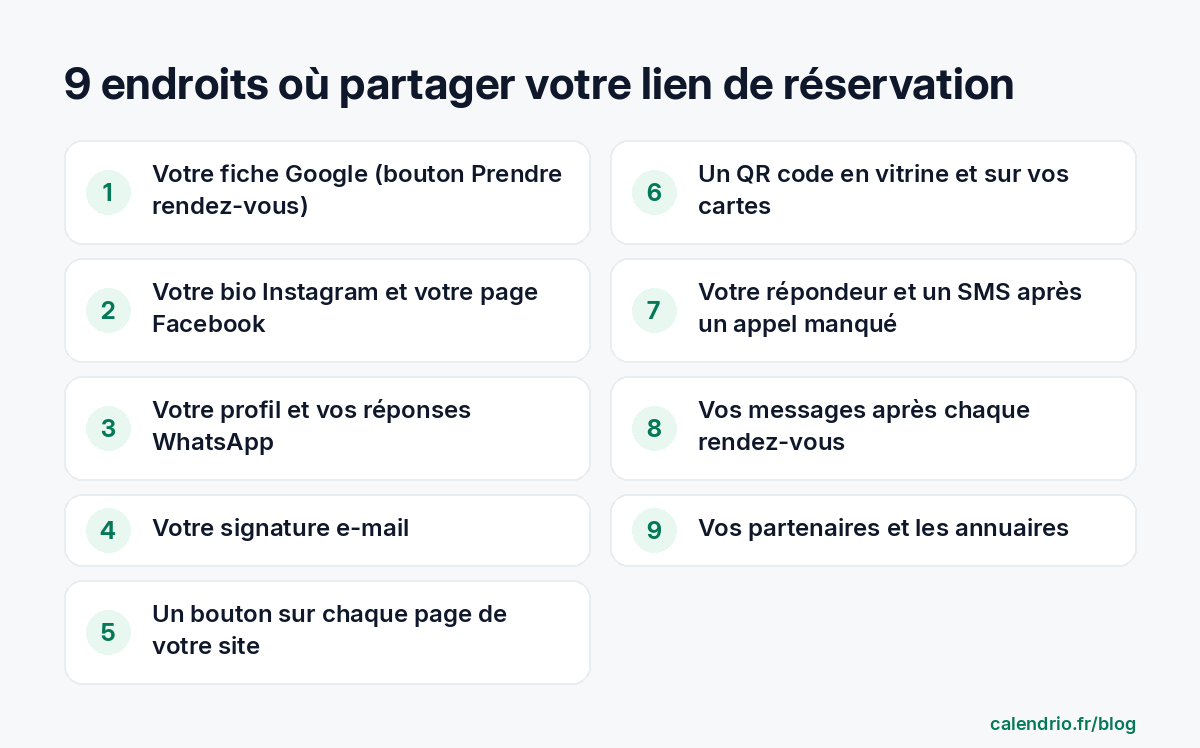
Why share your online booking link everywhere
The internet has become a real way in for small businesses. The France Num 2026 barometer, published by the French Ministry of the Economy based on more than 9,000 businesses, shows that 46% of very small and small-to-medium businesses say at least 5% of their clients come from the internet. These clients arrive through a search, a Google listing, a social network or a message forwarded by a friend.
In each of these places, the client asks the same question: "How do I book an appointment?" If the answer means calling during your opening hours, some of them will put it off, then forget. If the answer is a link that shows your free time slots, the booking happens straight away, even at 10 pm, even while you're with another client.
So the idea isn't to have several links, but one single link, everywhere. Always the same one, so your clients recognize it and your time slots stay up to date from one place. Our article on finding clients as a self-employed professional shows how this link fits into a wider approach.
1. On your Google listing
This is often the most profitable place. When someone searches "physical therapist near me" or the name of your salon, your Google Business Profile shows up with your hours, your reviews and, if you've added it, a button to book an appointment. According to Google's official help pages, a business can add up to 10 links for appointments or reservations, and choose a preferred link that appears at the top of the list.
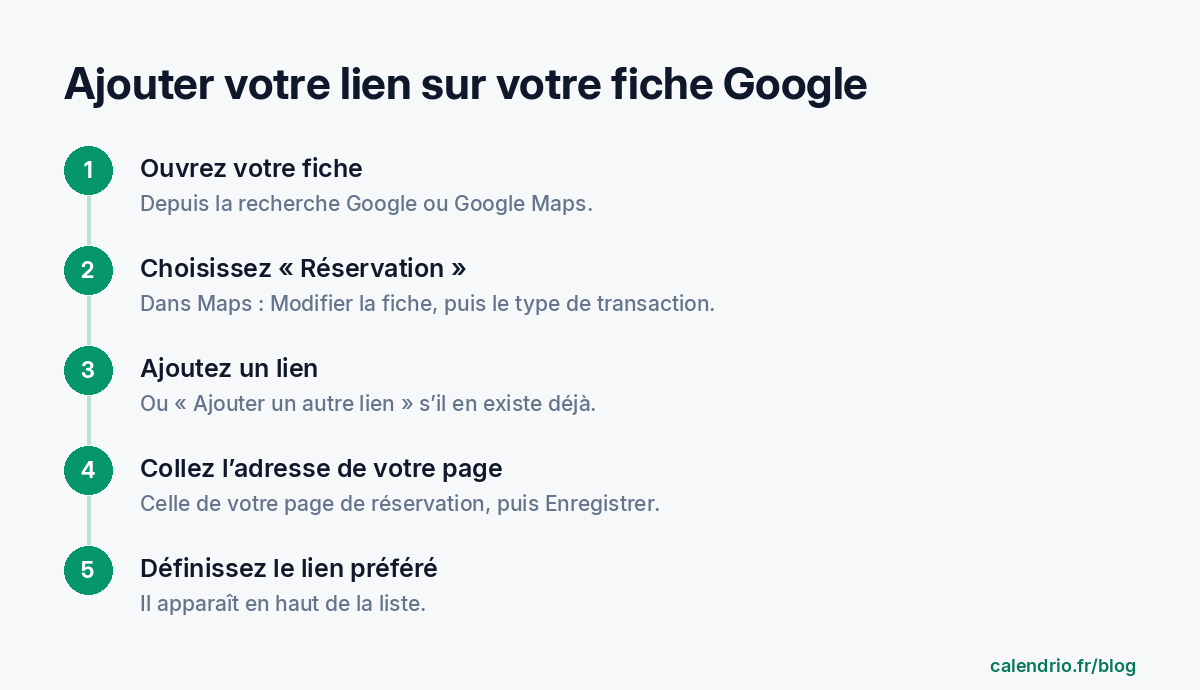
In practice, from your listing, select Bookings (or, in Google Maps, Edit profile then the type of transaction), then Add link, paste the address of your booking page and save. If old links are still there, set yours as the preferred link. For the rest of the listing, photos, categories and description, follow our guide to optimizing your Google Business Profile.
2. On Instagram, Facebook and WhatsApp
On social media, your future clients discover your work: a haircut, a before/after, a clip from a session. The booking link should be just one tap away.
- Instagram: the official help pages say you can add up to 5 links to your profile. Put your booking link first and mention it in your bio: "Book online here" quickly becomes a habit for your followers. Remind them in your stories when time slots open up.
- Facebook: add the link to your page's information and to your posts announcing availability.
- WhatsApp: put the link in your business profile description, and keep a ready-made message to answer "Do you have any openings this week?".
Reply to copy on WhatsApp or in a private message
"Hello [First name], thanks for your message! You can see my free time slots and book directly here: [link]. Booking takes less than a minute. If none of the times suit you, let me know and I'll see what I can do."
This reply doesn't close the door to conversation: it gives the client a way to book on their own, while leaving you to handle special cases.
3. In your email signature and on your website
You probably send dozens of emails a week: quotes, replies, invoices. Each one can carry your link. Add a short line to your signature, under your name and number:
Email signature to copy
[First name Last name]
[Profession], [City]
[Phone]
Book an appointment online: [link]
On your website, the link should be visible without searching: a "Book an appointment" button at the top of every page, and a second one at the bottom of your service pages. A client who has just read your "Facial" page wants to book straight away, not go back to the home page to find a number.
Examples by profession:
- Lawyer: "Book a first advice meeting" under each practice area page.
- Tradesperson: "Book a visit for a quote" on the page for each type of work.
- Coach: "Book a discovery session" at the end of each article or program.
4. In your window and on paper: the QR code
Some of your future clients walk past your premises, meet you at a trade show or keep your business card in their wallet. For them, the right format is the QR code: they scan it with their phone camera and land directly on your booking page.
Where to put it:
- on the window or door, at eye level, with the words "Book 24/7";
- on the counter or near the register, for the next appointment;
- on the back of your business cards and on your flyers;
- on the vehicle of a tradesperson or a practitioner who visits clients at home.
One thing to watch: the French gendarmerie warns about "quishing", scams where a fake QR code is stuck over a real one to send people to a fraudulent site. Print your QR code directly on the material rather than as a removable sticker, and check your window regularly. Add the address written out in full next to it: the client can check they're landing in the right place.
5. On the phone: voicemail and missed calls
When you're with a client, you can't answer. A client who reaches your voicemail should leave with a solution, not a wait.
Voicemail message to record
"Hello, you've reached [Business name]. I'm with a client and can't take your call. To book, the quickest way is to go to [short address of your page]: you'll see all my free time slots there. Otherwise, leave me a message and I'll call you back as soon as possible."
Read aloud, a long address is hard to remember. An SMS sent after the missed call, with the clickable link, works better: the client just has to tap the screen.
6. After every appointment and with your partners
The best time to get the next appointment is just after the previous one. The client is satisfied and knows when they'll need to come back. Put the link in your thank-you message, on the invoice or receipt, and in your follow-up messages: "For your next session in three weeks, book here: [link]." It's also the time to ask for a review, as explained in our guide to getting Google reviews.
Finally, think of your partners. A hairdresser and a beautician, a personal trainer and a physical therapist, a photographer and a makeup artist naturally send each other clients. Swap your booking links: each of you can show the other's link on your page or give it to a client looking for a complementary service.
How to present your link so people click
A link on its own, with no explanation, inspires less trust than a link with a clear sentence. A few simple rules:
| Place | Text to go with the link | To avoid |
|---|---|---|
| Google listing | "Book an appointment" button to your page | A link to a website's home page with no time slots |
| Instagram bio | "Book online, 24/7" | Five links of equal importance |
| Email signature | "Book an appointment online: [link]" | A long address with no text |
| Store window | QR code + "Scan to book" + written address | A QR code with no explanation at all |
| Message after the appointment | "For your next session: [link]" | Adding a promotion to every message |
Always keep the same link. If you change tools, update every place at once, starting with the Google listing and the Instagram bio. And once clients have booked, make sure they show up: an automatic appointment reminder limits forgotten appointments.
- One single booking link, always the same, at every point of contact.
- Google listing first: up to 10 appointment links, including one preferred link.
- Instagram bio, Facebook, WhatsApp: the link one tap away from your posts.
- Email signature and a "Book an appointment" button on every page of your website.
- QR code printed on your window and cards, with the address written out in full.
- Voicemail, messages after the appointment and partners complete the setup.
How Calendrio helps you share your link
With Calendrio, you have a booking page in your name, open 24/7, where your clients see your free time slots and book on their own. In Settings, the "Network & visibility" section gives you your booking QR code, to download, share or print as a small poster, the link to copy for the button on your Google listing, and the option to show the links of partners you recommend. You can also appear in the Find a pro directory.
For calls you can't take, the "Missed call → SMS" option automatically sends your link by SMS using a dedicated number. You can try everything with the one-month free trial, with no credit card and no commitment.
Frequently asked questions
Where should you put your online booking link first?
How do you add a booking button to your Google listing?
How many links can you put in your Instagram bio?
Is a booking QR code safe for my clients?
What if your calendar filled itself?
With Calendrio, your clients book online 24/7 and receive automatic reminders. 1-month free trial, no credit card required.
Try Calendrio for free- Ministère de l'Économie — Baromètre France Num 2026 : quatre TPE-PME sur dix utilisent désormais l'intelligence artificielle (28/09/2026)
- Aide Fiche d'établissement Google — Liens proposés par les établissements locaux
- Instagram Help Center — Add a website to your Instagram profile
- Gendarmerie nationale — Les cyber gendarmes mènent une campagne de prévention contre le quishing