Google Business Profile: optimizing your listing to attract local clients
Your Google listing is often the first thing a future client sees, even before your website. Here's how to make it complete, accurate and active, following Google's official recommendations, without paying and without cheating.
When someone types "physical therapist near me" or "hairdresser Lyon 7", Google first shows a map and a few business listings, even before websites. For a self-employed professional, your Google Business Profile (called "fiche d'établissement Google" in France) is therefore often the first impression you make. It's free, but it only works for you if it is complete, accurate and active.
This guide takes Google's official recommendations, step by step, and turns them into practical actions for a hairdresser, a beautician, a physical therapist, a coach or a tradesperson who travels to clients. Allow an hour for setup, then a few minutes a week.
What Google looks at to rank local listings
Google's help pages explain that local results are based on three criteria. Relevance: does your listing match what the person is looking for? Distance: how far are you from where the search is made? Prominence: is your business well known, particularly through reviews and links that mention you?
You can't do anything about distance. Relevance, however, depends directly on the information you enter, and prominence is built week after week. Google also makes a point that avoids a lot of disappointment: there is no way to get a better position in local rankings on request or by paying. So be wary of sales pitches promising you "first place on Google Maps".
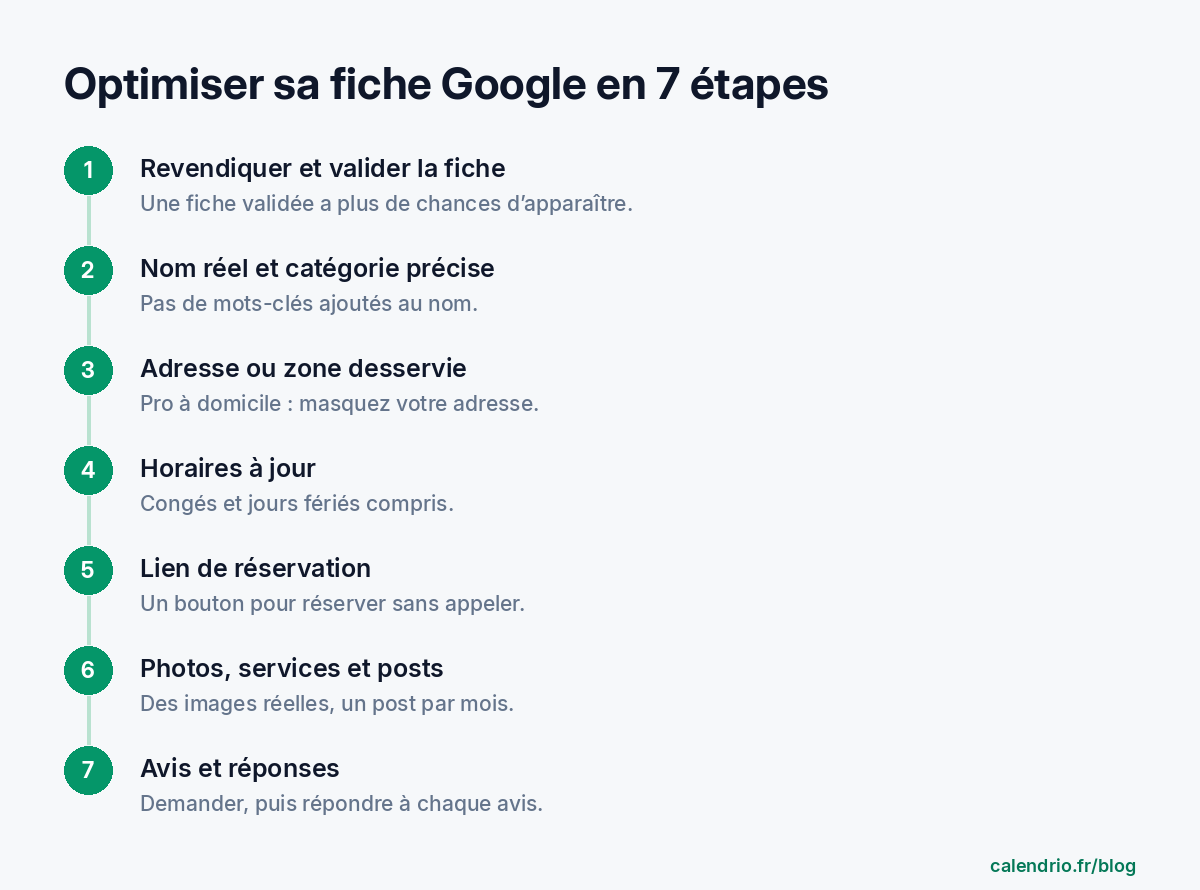
Step 1: claim and verify your listing
Your business may already have a listing, created automatically or by a client. Search for your name on Google Maps. If a listing exists, use the option to claim it; otherwise, create it at business.google.com with the Google account you use for your business.
Google then asks you to verify the business. Follow the verification method Google offers for your business. Don't skip this step: according to Google's help pages, a verified listing is more likely to appear in local results, and only you will be able to edit it.
What to prepare before you start:
- the exact name of your business, as it appears on your storefront, your invoices or your business card;
- your address or the list of towns you travel to;
- your weekly opening hours and your upcoming closures;
- your business phone number and your online booking link;
- five to ten recent photos of your premises, your work and yourself.
Step 2: an exact name and the right category
This is the most common mistake: adding keywords to the name to "rank higher". "Sophie Martin – Cheap Women's Men's Hairdressing Lyon" goes against Google's guidelines, which ban slogans, unofficial location information, services or products from the name. The name must be the one you actually use in the physical world.
The primary category, on the other hand, carries a lot of weight for relevance. Google recommends choosing as few as possible to describe your core business. Choose the most specific one: "Physical therapist" rather than "Health center", "Hair salon" rather than "Beauty salon" if haircuts are your core business. Additional categories can then cover a real, regular activity, for example "Barber shop" for a unisex salon.
Examples of category choices
- Beautician with a salon: a primary category close to "Beauty salon", then possibly a category linked to a treatment you really offer.
- Home personal trainer: "Personal trainer" or the closest category offered by Google.
- Lawyer: the category linked to your main area of practice rather than the generic category, if it exists.
Step 3: address or service area, the case of professionals who travel
If you see your clients at business premises, enter the exact address. Google bans PO boxes and only allows one listing per business.
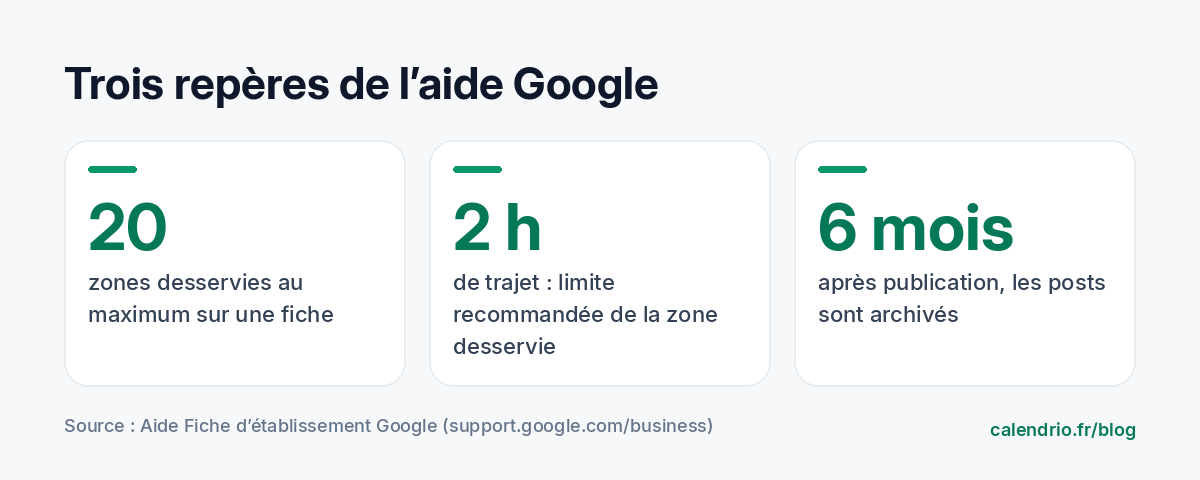
If you travel to your clients (mobile hairdresser, tradesperson, coach, mobile wellness practitioner) and work from home, Google's guidelines ask you to remove the address from the listing and enter a service area instead. You protect your privacy and stay compliant. Google's help pages state that you can add up to 20 service areas, and recommend limiting the overall area to two hours' travel from your business.
Be realistic: a plumber based in Nantes who checks every town in the département will give false hope to clients they can't serve. List the towns you really go to, the ones that make up most of your revenue.
Step 4: hours that are always right
Wrong hours are costly: a client who turns up at a closed door doesn't come back, and may say so in a review. Google lists hours among the information to keep up to date, including special hours (public holidays, time off, training).
- Enter your usual hours, day by day, including the lunch break if you close.
- Add special hours as soon as you know your time off.
- If you only work by appointment, enter the times when people can reach you or book, and state "by appointment" in the description.
A consistency tip: your Google hours, your website hours and your online calendar hours should all say the same thing. A mismatch creates doubt.
Step 5: add a booking link
A listing that only shows a phone number forces the client to call, often while you're busy. Google's help pages let you add a booking link to a page where people can actually book an appointment, whether it's your own website or a booking service. The client then sees a button to book directly from Google Maps or Google Search.
In the interface, the option is usually found when editing the profile, in the links or bookings section. Paste the address of your booking page, save, then test the button from your phone, as a client would.
Description template ready to adapt:
"Physical therapist in [city], I see patients by appointment Monday to Friday for rehabilitation, sports follow-up and back problems. Practice accessible [access, parking]. Book online 24/7 with the Book button, or call me between sessions."
The description should present your business, not line up keywords. Say what you do, for whom, where and how to book.
Step 6: photos, services and posts
Google recommends adding photos and videos to show your business. For a self-employed professional, three types of images are enough: your premises (front, entrance, waiting room, so clients recognize you when they arrive), your work (before/after for a hairdresser, a treatment room for a beautician, a finished job for a tradesperson) and yourself, because people are more willing to book with someone whose face they've seen. Avoid stock photos: they reassure no one.
Also fill in the list of your services with a clear name and, if you wish, an indicative price. Then publish a post from time to time: something new, an offer or an event. Posts can include an action button, for example to book. According to Google's help pages, posts older than six months are archived: one post a month is enough to show the listing is looked after.
Post ideas by profession
- Hairdresser: "New Saturday morning time slots from November."
- Beautician: "Gift cards for the holidays are available."
- Coach: "Discovery session: how the first appointment works."
- Tradesperson: a photo of a finished job, with the town and the type of work.
Step 7: reviews, the engine of prominence
Google's help pages are clear: the more reviews and positive ratings you get, the more likely your business is to rank well. They also recommend actively managing the reviews you receive: replying shows that you listen. The method comes down to three actions: ask in person at the end of a successful appointment, send the direct review link the same day, then reply to every review, positive or negative.
Be careful: offering a discount or a gift in exchange for a review is against Google's rules, and fake reviews are punishable by law. We've detailed the full process, with message and reply templates, in our guide to getting Google reviews after every appointment. Your listing is only one of the channels for getting known: our guide to finding clients when you're starting out presents others.
Mistakes that hurt a listing
| Mistake | Why it's a problem | What to do |
|---|---|---|
| Keywords added to the name | Goes against Google's guidelines on names | Keep the real business name |
| Home address shown by a professional who travels | Goes against the guidelines and bad for privacy | Hide the address, enter a service area |
| Holiday closures not entered | Disappointed clients at a closed door | Add special hours in advance |
| No booking link | The client has to call and gets voicemail | Add a link to a booking page |
| Two listings for the same business | Only one listing per business is allowed | Keep only one active listing |
| Reviews left unanswered | Looks like an abandoned listing | Reply to every review within the week |
A well-kept listing attracts clients, but it doesn't keep them if appointments go badly. To make sure the first visit is attended and goes well, also rely on our methods to reduce missed appointments. And if you're a hairdresser, our article on booking software for hairdressers details the useful features for an independent salon.
- Google ranks listings by relevance, distance and prominence; no position can be bought.
- Verify your listing, keep your real name and choose a specific primary category.
- Professionals who travel to clients: hide your address and enter a realistic service area.
- Keep your hours up to date, time off included, and add a booking link.
- Real photos, one post a month and a reply to every review keep the listing active.
How Calendrio helps you turn your listing into appointments
Calendrio gives you a personal booking link that you can paste into your Google listing: in Settings, under "Network & visibility", the link to use for the "Book" button is ready to copy, along with a printable QR code for your store window. Your clients choose a free time slot themselves, 24/7, based on the hours you've set. With the paid plans and during the trial, Calendrio can also send a review request by email after the appointment, with your Google link.
You can also appear in the Find a pro directory, one more showcase for people looking for a professional near them. To try it, the one-month free trial requires no credit card and no commitment.
Frequently asked questions
Does a Google Business Profile cost anything?
Do I have to show my address if I work from home?
Can you add keywords to the name of your Google listing?
How do you add a booking button to your Google listing?
What if your calendar filled itself?
With Calendrio, your clients book online 24/7 and receive automatic reminders. 1-month free trial, no credit card required.
Try Calendrio for free- Aide Fiche d'établissement Google — Conseils pour améliorer votre classement local sur Google
- Aide Fiche d'établissement Google — Consignes relatives à la représentation de votre établissement sur Google
- Aide Fiche d'établissement Google — Gérer vos zones desservies
- Aide Fiche d'établissement Google — Liens proposés par les établissements locaux
- Aide Fiche d'établissement Google — Créer et gérer des posts pour votre fiche d'établissement