Building a sales funnel when you work by appointment
A practitioner’s sales funnel is the path that takes a stranger to a booked session, then to a second one. Here are the six steps, what you set up in Calendrio, and what it doesn’t do.
For a practitioner, a sales funnel is the path that takes someone who doesn’t know you all the way to a booked session, then to a second one. Calendrio covers the part that happens on your side: the showcase page, booking, payment, reminders, what follows the session and follow-ups. It doesn’t create your advertising, and in this journey it only writes to your clients.
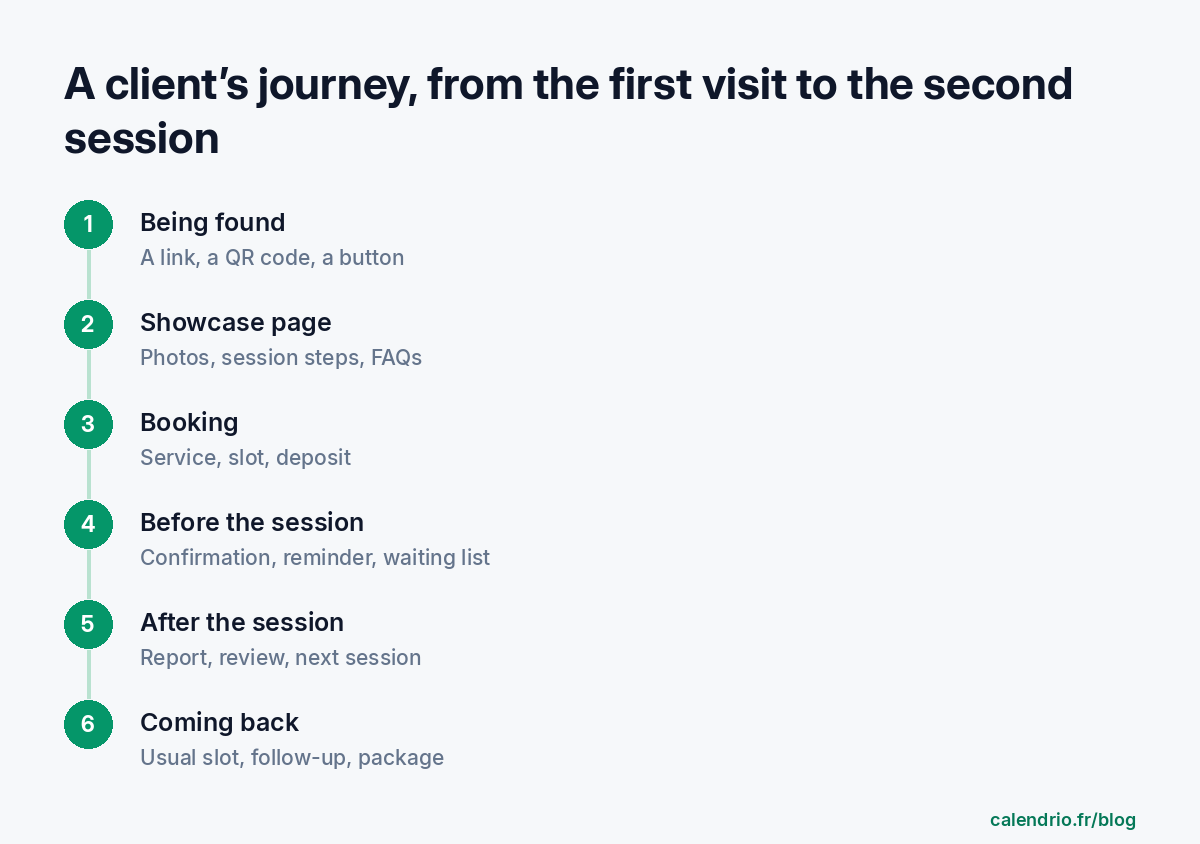
This article follows a client’s journey, step by step. For each step: what you set up, what the client sees, and what Calendrio doesn’t do.
A sophrologist’s sales funnel: Camille’s example
Camille, an imaginary character, is a sophrologist. She offers a 45-minute discovery session and individual sessions, at her practice and by video call. Her clients find her through word of mouth, message her on Instagram “do you have room on Thursday?” and sometimes forget to turn up. Every request costs her several messages, and no one follows up with a client who stops coming.
Her goal fits in one sentence: someone who hears about her should be able to book a discovery session without messaging her, and then receive everything they need to come. Each step below removes an obstacle along that path.
Step 1: being found, and leading to the same place
A funnel needs a single way in. Camille puts her booking link everywhere people can find her: Instagram bio, Google profile, email signature, business card with the QR code Calendrio generates. On her website, a “Book” button or the embedded calendar (WordPress plugin, or code to paste on Wix, Squarespace, Webflow or Shopify) leads to the same place.
If she pays for a Facebook or Instagram ad, Calendrio can report page views, bookings and payments to Meta, only for visitors who came from that ad and accepted the privacy banner (paid plans and trial). Calendrio itself doesn’t create or manage the advertising.
Step 2: a showcase page that reassures
Someone discovering Camille wants to know what a sophrology session is, where it takes place and whether this person inspires trust. The showcase page answers that: three design templates (Radiance, Elegance, Zen), up to 8 photos, key strengths, an “about” text, the steps of a session, frequently asked questions and an offer. It is edited directly on the page, already pre-filled with examples that Camille replaces with her own words. The “figures” and “reviews” blocks only appear if she fills them in herself: nothing is made up for her.
In a wellness profession, describe the session without promising a cure or any therapeutic effect. Camille writes “a 45-minute session to learn to release tension”, not “you’ll never be stressed again”. The other features for your profession are gathered on the Calendrio for wellness practitioners page.
Step 3: simple booking, with the right filters
This is the step where you lose the most people if it’s poorly set up. The form asks for first name, last name and email; depending on where the session takes place, a phone number (required for a phone session) or an address (at the client’s home); the message is optional. The client chooses a service, fills in their details, then the time slot. Settings are made service by service: so Camille handles her discovery session differently from her follow-up sessions.
| Setting (under each service) | What the client sees | When to use it |
|---|---|---|
| Location | Practice, video call (automatic Google Meet link if your Google Calendar is connected), phone, client’s home or “client’s choice” | One service per location if you want to limit the choice |
| Payment | On site, deposit or full amount online; the button becomes “Pay and book” | Discovery session, to reduce no-shows |
| Minimum booking notice | No slot earlier than the number of hours you set | If you need time to prepare |
| Manual approval | A “pending request” that you accept or decline (the client receives an email either way) | Services on request; best avoided for a discovery session if you want speed |
| Who sees the service | A question before booking, then only the services that fit | Sessions for adults and for children, different programmes |
| Cancellation and refund | The terms are shown on the booking page; the confirmation email contains a link to cancel | To set for each service (online cancellation is ticked service by service) |
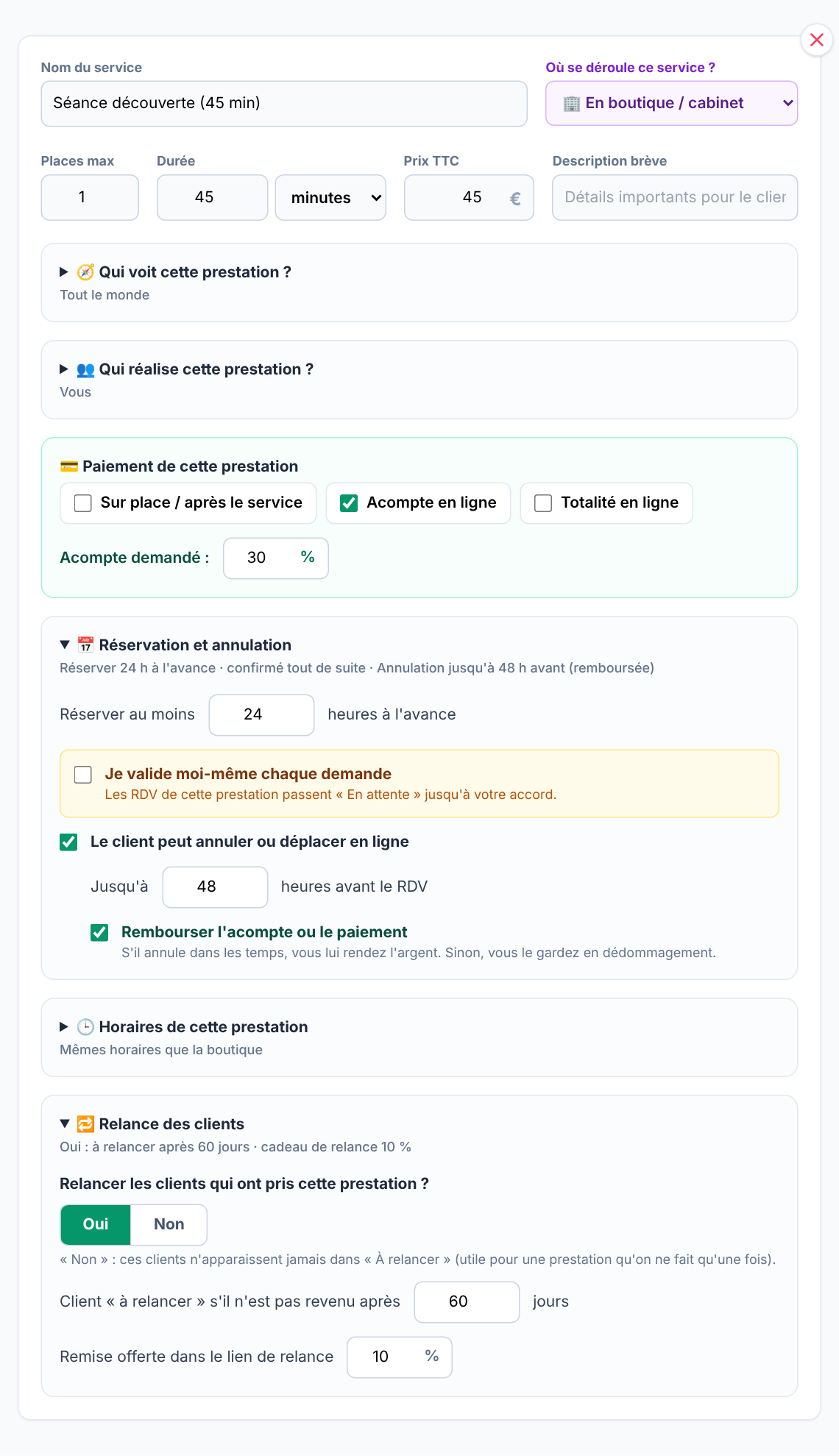
Deposits and online payment go through Stripe, straight into your account, including on the free plan. Calendrio takes no commission on paid plans or during the trial; only the payment provider’s fees apply. To choose the amount, read taking an online deposit at booking.
The more you ask for, the fewer bookings you get. So Camille keeps her discovery session as simple as possible (a deposit, no manual approval) and keeps filters for the services that need them, such as her sessions for children, which she only shows to parents who say so. Appointments made by phone she adds manually, so that the calendar stays complete.
Step 4: between booking and the session
Until the client has turned up, nothing is certain. Calendrio sends a confirmation with the date, the location or the video call link, any access instructions and buttons to add the appointment to their calendar (Google Calendar, iPhone, Outlook, other). A reminder then goes out: the day before by email from the free plan; with a paid plan or the trial, at the time of your choice, by email or SMS, up to three reminders per appointment. SMS reminders go to mobiles in France, Spain, Portugal and Germany; elsewhere, the reminder goes out by email.
If a slot opens up after a cancellation, the waiting list, then the regular clients for that slot, are notified (paid plans and trial, setting in Settings, “Automatic growth”). If one of Camille’s clients cancels on Thursday, someone else can take her place.
Step 5: after the session, preparing the next one
Once the session is over, Camille taps “Completed” on the appointment record. She can write a session report there. It is private by default; she can share it with the client in their summary (the “Share with the client” box is unticked by default), and prepare the next session from that record in a few clicks. The “Thank you for your visit” summary goes out when she completes the appointment, if the client has an email address and the “send the summary” box stays ticked (it is by default); it suggests a next appointment if you have chosen a time frame in Settings (by default, nothing is suggested).
A shared report is sent by email and may touch on health: Camille only notes what is necessary and keeps the rest private. See client files and the GDPR.
A few hours after the session, with a paid plan or the trial, Calendrio can send a Google review request if the client has an email address and hasn’t unsubscribed, and if Camille has pasted her review link in Settings. It doesn’t send it again to the same client within 3 months. These reviews feed step 1 for the next people.
Step 6: bringing clients back, without pestering them
A client who enjoyed their session won’t necessarily book again on their own. Three mechanisms, which are not all used in the same way:
- The usual slot (paid plans and trial): a client who has come at least 3 times reaches the end of their usual rhythm with no appointment planned; Calendrio offers them their slot, after checking it is free. Camille has nothing to do for her Thursday 6 pm client: if the slot is free, she receives the offer.
- Follow-up after a set time: under each service, you choose whether clients are followed up, after how many days (60 by default) and with what discount (10% by default, offered only if you tick the offer when sending the campaign). The “To follow up” filter in the contact list gathers those who have reached that time. It isn’t automatic: you tick the people and launch the campaign, by email (from the free plan, 5 clients per send, more with a paid plan) or by SMS (paid plans and trial, French mobiles only). Each message contains an unsubscribe link, and unsubscribed clients are excluded. The article following up with a client offers messages you can adapt.
- Packages and gift cards (paid plans and trial): a package of sessions is sold online, the client enters their code when booking and each session is deducted.
The free plan is limited to 30 contacts. Write to your own clients, in moderation, and respect their choice; Calendrio adds an unsubscribe link to every message; if you have any doubt about the rules on marketing messages, check with the CNIL or a legal professional.
What Calendrio doesn’t do
- It doesn’t create your ads or manage your budget.
- In this journey, it only writes to your clients, not to people who aren’t clients yet.
- It doesn’t test two versions of a page against each other.
- It doesn’t sell products on your page: only sessions, gift cards and packages.
- WhatsApp isn’t available yet for reminders or campaigns.
A sales funnel is judged on one thing only
The right indicator is the number of people who discover your name and end up sitting in your practice. To get started without spreading yourself thin, begin with the three steps that matter most: your services and their payment, your showcase page, then a test booking you make yourself from a phone. The rest (reminders, reviews, follow-ups) can be set up afterwards, one setting at a time. Depending on the number of services and the time spent on your texts, it takes a few hours, not weeks; this is not a guaranteed time frame.
Don’t have Calendrio yet? Create your account with this link: 3 months free for any sign-up made through this link until 30 November 2026, no credit card required.
— The Calendrio team
Frequently asked questions
Is it long and complicated to set up?
Do I need a website to have a sales funnel?
Can I ask for a deposit at the time of booking?
Are client follow-ups automatic?
Which steps are available on the free plan?
What if your calendar filled itself?
With Calendrio, your clients book online 24/7 and receive automatic reminders. 1-month free trial, no credit card required.
Try Calendrio for free