How to sync Google Calendar with your appointment calendar: the guide
Two calendars that ignore each other mean guaranteed double bookings. Here's how to connect Google Calendar or Outlook to your appointment booking calendar: the right account, the right calendars, the "Busy" status and a five-minute test.
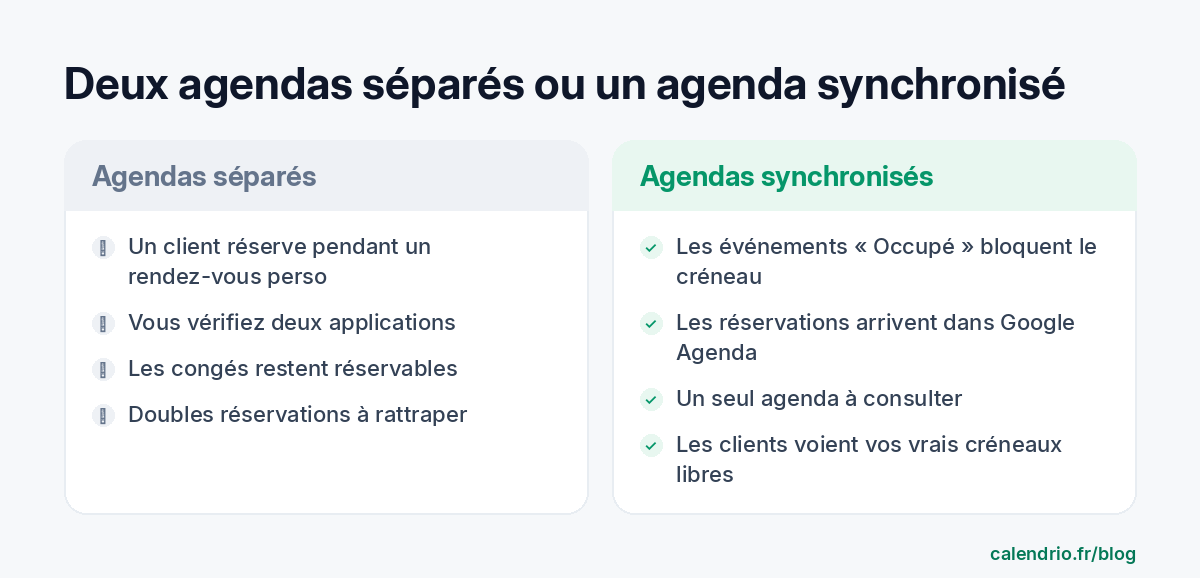
A client books online for Tuesday at 2 pm. Problem: you'd blocked that time slot in your personal calendar for a dentist appointment. This kind of double booking happens as soon as your appointments live in two tools that ignore each other. The solution is to sync Google Calendar (or Outlook) with your appointment booking calendar, so that any time that's busy on one side is unavailable on the other.
This guide explains what syncing really does, how to set it up step by step, how to handle multiple accounts (work, personal, business partner) and which mistakes still cause double bookings. The examples are based on Calendrio, but the logic applies to most booking tools.
What exactly does calendar sync do?
Syncing two calendars means getting them to "talk" to each other. In a well-designed booking tool, this works both ways:
- From Google to the booking tool: your personal and work events in Google Calendar show up in the booking calendar. Those marked "Busy" make the time slot unavailable to your clients.
- From the booking tool to Google: every appointment a client books online is added to your Google Calendar. You see it on your phone, alongside the rest of your life.
The first direction is the one that prevents double bookings. The second saves you from checking two apps to know where you need to be. A tool that only does one of the two leaves the door open to mistakes. If you're still choosing your tool, this is one of the criteria for choosing appointment booking software.
Before you start: take stock of your calendars
Most double bookings don't come from a technical fault, but from a forgotten calendar. Before connecting anything, list every place where you write down commitments:
- your main Google calendar (often the one for your Gmail address);
- the secondary calendars you've created: "Family", "Training", "Jobs"…;
- calendars shared with you: a partner's, a business associate's, a practice's;
- a possible second Google account (personal on one side, work on the other) or an Outlook / Microsoft 365 account.
For each one, note whether it should block your bookings. Example: a physical therapist who shares a practice wants her "Childcare" calendar to block her time slots, but not her colleague's calendar. A tradesperson wants to block his jobs, but not the family birthdays calendar.
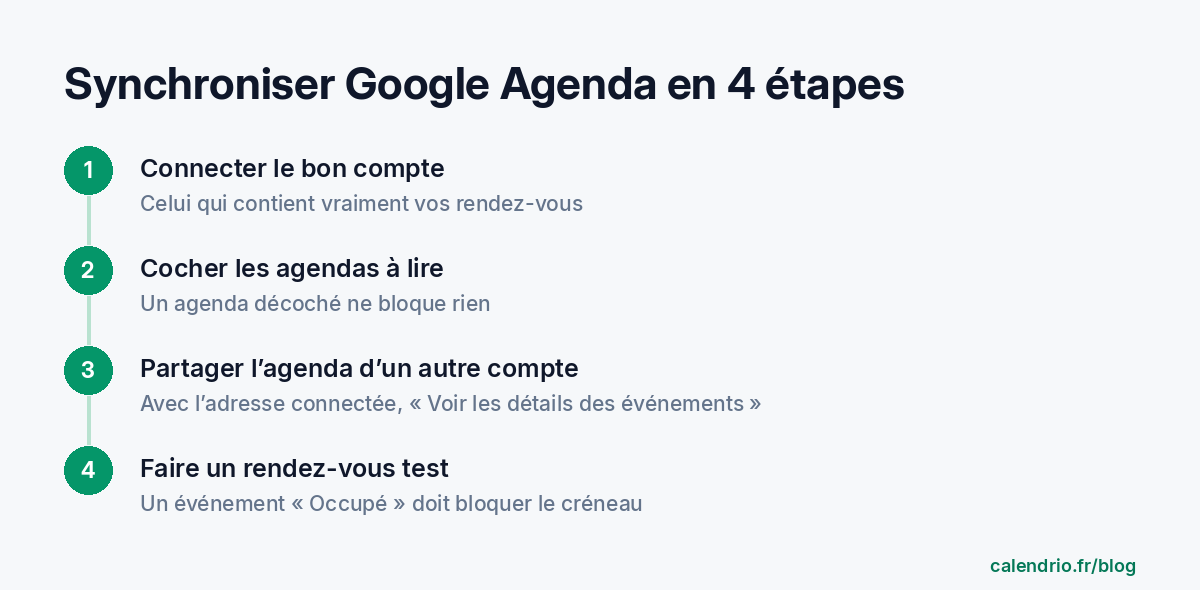
Step 1: connect the right Google account
To sync Google Calendar without surprises, everything starts here. The most common mistake: connecting the Google account you use to log in to your computer, rather than the one that holds your actual calendar. First check on your phone which address shows your appointments.
In Calendrio, you connect from Settings → Google Calendar sync, with the "Link my Google account" button. Google then asks you to choose an account and grant permissions. If checkboxes appear, check them all: without them, the tool can't read your secondary calendars.
Step 2: choose the calendars that block your time slots
In Google Calendar on a computer, the left-hand column lists your calendars under "My calendars" and "Other calendars". Each checked box is a displayed calendar. With Calendrio, the rule is simple: the main calendar and all checked calendars are read, including those shared with you. An unchecked calendar doesn't appear and doesn't block anything.
That checkbox becomes your on/off switch. Want a calendar to block your bookings? Check it. Don't want it to? Uncheck it.
Step 3: link a calendar that lives on another account
Many self-employed people have two Google accounts: one for their personal life and one for their business. Rather than juggling, share the second account's calendar with the address connected to your booking tool. According to Google Calendar Help, here's how to do it on a computer:
- open Google Calendar with the other account;
- under "My calendars", click the three dots next to the calendar, then "Settings and sharing";
- in the "Share with specific people or groups" section, click "Add people and groups";
- enter the address connected to your booking tool;
- choose the permission level, then click "Send".
Google offers several levels, including "See only free/busy (hide details)" and "See all event details". For events to display properly in Calendrio, choose "See all event details". Then open the invitation email received at the connected address, add the calendar and check that it's checked under "Other calendars".
Google Workspace business account: Google Help states that for a work or school calendar, whether you can share it depends on your administrator. If sharing is refused, that's probably the setting you need to ask for.
What about Outlook or Microsoft 365?
The logic is the same. In Calendrio, you connect from Settings → Outlook / Microsoft 365 sync, with "Link my Microsoft account". There's nothing to check: all the account's calendars are read, including those shared with you that you've accepted.
For a calendar on another Microsoft account, Microsoft Help says to share it from Outlook on the web, with the "Can view all details" level. The other levels ("Can view when I'm busy", "Can view titles and locations") give less information. With a business account, Microsoft may require an administrator's approval: pass the request on to your IT department.
Have both a Google account and a Microsoft account? Connect both: everything shows up in one place.
"Busy" or "Free": the setting that changes everything
Every event in Google Calendar or Outlook has an availability status. It's this status, and not just the fact that an event exists, that decides whether a time slot is blocked. In Calendrio:
- a "Busy" event is displayed and blocks bookings for that time slot;
- a "Free" event is displayed, but doesn't block bookings;
- an all-day event only blocks if it's marked "Busy".
This is handy. A reminder "Remember to order products" noted at 10 am shouldn't stop a client from booking: leave it as "Free". On the other hand, an all-day training event must be set to "Busy", or your clients will be able to book while you're away.
Step 4: check with a test appointment
Don't rely on the connection alone: once you've chosen to sync Google Calendar or Outlook, test it. The full test takes five minutes.
Test checklist to copy:
- In Google Calendar, create a "Busy test" event tomorrow at 11 am, with the status "Busy".
- Reload your booking calendar: the event should appear.
- Open your booking page in a private browsing window: the 11 am time slot should no longer be offered.
- Set the event to "Free" and reload: the time slot should come back.
- Make a test booking in your own name: it should appear in your main Google calendar.
- Delete the test event and the test booking.
With Calendrio, there's no need to wait: an appointment added in Google or Outlook appears as soon as you reload your calendar page. The display covers the past 7 days and the next 60 days.
Mistakes that still cause double bookings
| Symptom | Likely cause | What to do |
|---|---|---|
| An event doesn't appear | Calendar unchecked, or another account not shared | Check the calendar in Google, or share it with the connected address |
| The event appears but doesn't block | "Free" status | Set the event to "Busy" |
| A day off can still be booked | "All-day" event set to "Free" | Mark it "Busy", or add an exceptional closure |
| Only the main calendar shows | Old connection or incomplete permissions | Disconnect, then reconnect and accept all permissions |
| A far-off appointment doesn't appear | Outside the displayed period | Check that it falls within the next 60 days |
One last point: in Calendrio, appointments coming from Google or Outlook are read-only. To move your dentist appointment, use Google Calendar or Outlook, not the booking tool.
Three examples of organization by profession
Mobile hairdresser
She notes her travel and personal appointments in Google Calendar, as "Busy". Her clients book online only in time slots that are really free, travel included. Her task reminders ("order hair color") stay as "Free".
Personal trainer
He has a personal Google account and a work account. He shares his personal calendar with his work address, which is connected to the tool. His video call sessions get a Google Meet link automatically, since his Google calendar is connected.
Tradesperson
His jobs are in Outlook, on his Microsoft 365 account. He connects that account: each job blocks the quote time slots offered online. He also reserves a fixed block for his quotes, as "Busy", as in the time blocking method.
- A good sync works both ways: your events block time slots, and your bookings land in Google Calendar.
- Start by taking stock of your calendars, and connect the account that really holds your appointments.
- In Google, a calendar's checkbox decides whether it's read; a calendar from another account is shared with the connected address.
- Only "Busy" events block bookings.
- Make a test appointment to check, then keep your calendars up to date in one place.
How Calendrio connects your Google or Outlook calendar
In Calendrio, Google Calendar and Outlook / Microsoft 365 sync is included in every plan, including the Free plan. Your "Busy" events show up in your Calendrio calendar and block booking time slots, and your Calendrio appointments are added to your main Google calendar or your main Outlook calendar. The sync guide explains each setting in detail.
Your clients then book online themselves, 24/7, only in your genuinely free time slots. To organize those time slots across the week, our guide to organizing your week as a self-employed professional can help. You can test it all with the one-month free trial, no credit card and no commitment.
Frequently asked questions
How do I sync Google Calendar with an appointment booking calendar?
Why doesn't a Google Calendar event block my bookings?
Can I sync two different Google accounts?
Is Google Calendar sync free on Calendrio?
What if your calendar filled itself?
With Calendrio, your clients book online 24/7 and receive automatic reminders. 1-month free trial, no credit card required.
Try Calendrio for free