Finding a time that works with a client or a colleague
A client who calls instead of booking, a workshop to plan with a colleague: here is how to find a time that works for everyone in Calendrio, with “A client” and “For me”.
To find a time that works with a client who doesn’t book online, or with a colleague for a workshop, it often takes ten messages. In Calendrio, everything starts from a single window, “Add to my calendar”, which has two tabs: “A client” for a work appointment, “For me” for everything else. Both have the same button, “Suggest free times”.
This article follows a week in the life of Inès, an imaginary reflexologist. Three situations, three ways to set a time. For each one: what you do, what the other person receives, and what Calendrio doesn’t do.
Two tabs, two uses
“A client” creates a real appointment: a client (existing, or new with just a phone number or an email address), a service, possibly a team member, the location (practice, video call, phone, client’s home or another place) and the client’s reminders. This is what you use when a client calls you instead of booking themselves.
“For me” is for everything that isn’t a session: a task, a personal appointment, a meeting with a colleague, a training course. You give it a name, a colour, a reminder for yourself, and you decide whether your clients can book during that time.
In both tabs, if the date isn’t set yet, “Suggest free times” searches your calendar for the times you are free. Then you have two choices: you set a time yourself, or you offer several to the other person, who picks one.
With or without a tool, the method for finding a time that works stays the same: offer only a few times (2 to 4 is often enough), give a deadline to reply, then keep the one that suits the most people. Calendrio does all three from your calendar; only the organiser needs an account.
Monday: Mrs Lefèvre calls and will never book online
Mrs Lefèvre, 72, an imaginary client, calls the practice for a foot reflexology session. She has no email address, only a mobile phone, and she can’t decide between several days. Inès is between two sessions and can’t go through her calendar with her over the phone.
Inès opens “Add to my calendar”, “A client” tab. She creates Mrs Lefèvre’s record with her first name and number (a phone number or an email address is enough), chooses the service “Foot reflexology, 1 hr” and the location “In store / at the office”. Then she taps “Suggest free times”.
Calendrio searches her calendar, using the length of the service, for free times over the next few days. The settings change with a tap: period, hours (“Not before”, “Over by”), days of the week, duration. Inès keeps four times ticked (the first four are ticked automatically, she can change them), chooses “2 days” to reply, and what Calendrio will do at the end.
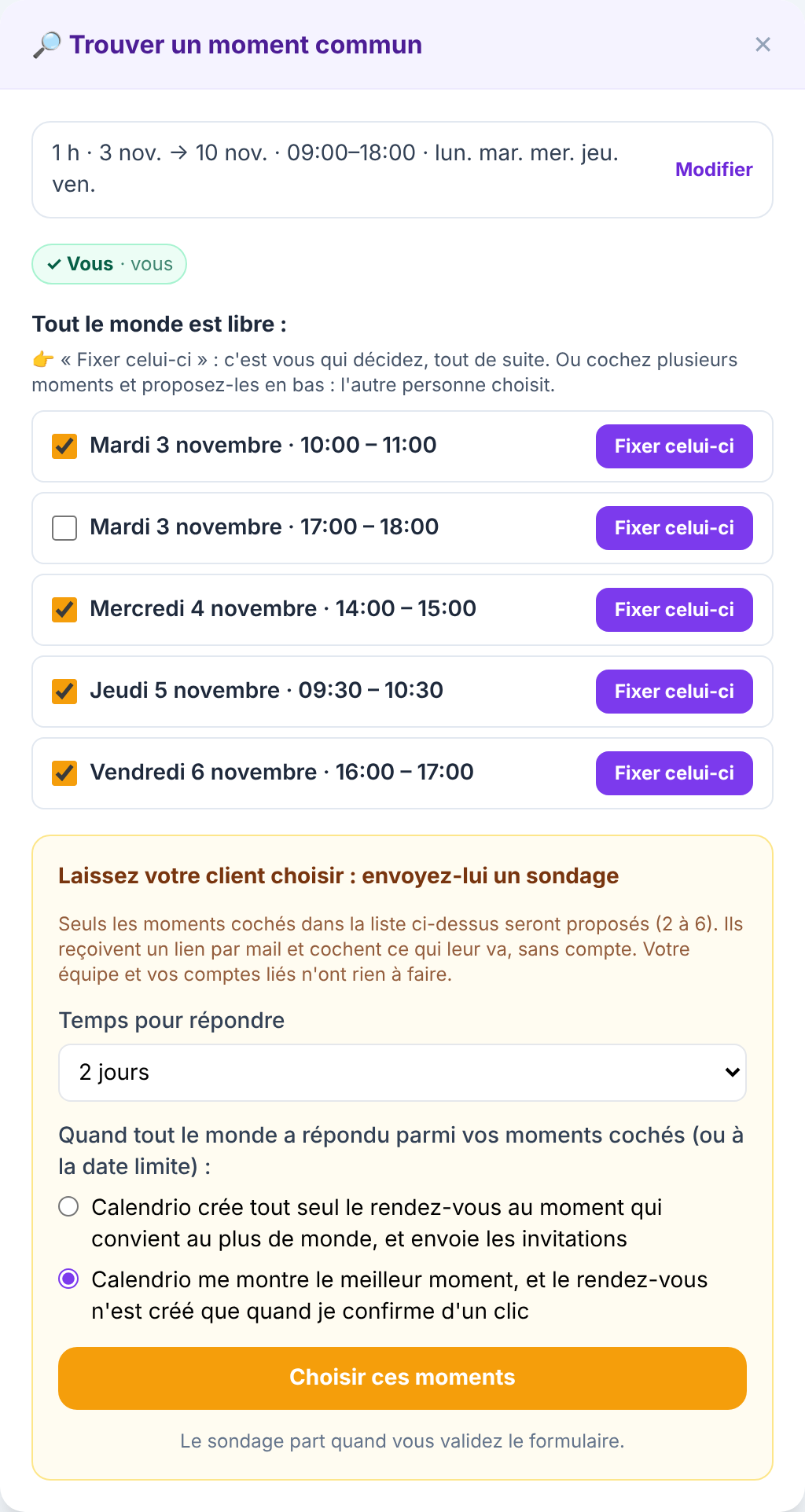
She taps “Choose these moments”: the four times appear in the form, under “Proposed moments”. Nothing has been sent yet. The poll goes out when she taps “Confirm” at the bottom of the form, just as for a normal appointment.
Since Mrs Lefèvre has no email, no email is sent. A window opens for Inès with two buttons, WhatsApp and SMS, and the message already written: the name of the practice, the session, the deadline and the link. Inès taps “SMS” and sends it from her phone. Mrs Lefèvre opens the link and ticks the times that suit her, without creating an account.
When the poll ends (or when Inès confirms, if she chose to approve it herself), the appointment is created with the chosen service, location and reminders. A client with an email address receives their confirmation by email. Mrs Lefèvre doesn’t have one: Calendrio lets Inès know, and she sends her the date herself.
“Pick this one” or “Choose these moments”: the difference
| “Pick this one” | Tick, then “Choose these moments” | |
|---|---|---|
| Who decides? | You, straight away | The other person, from 2 to 6 times |
| What happens | The date and times are filled in on the form | A poll goes out when you click “Confirm” (or “Save the task”) |
| When to use it | The client is on the phone and says yes | The client needs to check their calendar, or you’re organising with several people |
| Afterwards | A normal appointment, with its reminders | The appointment is created when the poll ends, automatically or after your click, as you choose |
For the end of the poll, you choose, nothing is ticked by default: either Calendrio creates the appointment by itself at the time that suits the most people, or it shows you the best time and the appointment is only created when you confirm with one click. The time to reply ranges from 12 hours to one week.
Wednesday: finding a time that works with a colleague
Inès is preparing a “breathing and relaxed feet” workshop on a Saturday morning with Julien, an imaginary sophrologist. Julien has his own Calendrio account, linked to Inès’s in Settings → Linked accounts.
She opens the “For me” tab, types “Prepare the workshop with Julien”, adds him as a guest with the email address of his Calendrio account, then taps “Suggest free times”. Calendrio looks at her calendar and Julien’s, since he is an active linked account. It only sees “busy” blocks, never the details of Julien’s appointments. It suggests up to 8 times when both are free. Inès taps “Pick this one”: there’s nothing to ask, both calendars are already known. Then she taps “Save the task”: that is when the invitation goes out. Julien receives the invitation by email, replies “I accept” or “I can’t”, and gets a reminder the day before.
Calendrio never reads someone’s calendar just because it knows their address. It only sees your calendar, your team’s and those of your linked accounts. For an outside guest, a naturopath who doesn’t use Calendrio for example, their calendar is marked “calendar not visible”, and the poll takes over: she receives the link by email, or by WhatsApp or SMS if you only have her number.
To add a guest, the “Guests” field opens your contact list, with a search by name, email or number. Someone who isn’t in your contacts yet can be added with their email or number, and a box offers to save them to your contacts.
Friday: blocking out a training course, keeping a simple reminder
Inès is attending a training course on Friday afternoon. She creates a “For me” entry for those hours and answers “No, I’m not available at that time” to the question “Can clients book during this task?”. No one will be able to book that slot.
The same day, she wants to remember to order massage oil. For this kind of task, she answers “Yes, it’s just a reminder for me”. Two more questions appear: get an email if a client books at the same time, and let Calendrio move the task, to just after the appointment, to the next free moment of the day or to the same time the next day.
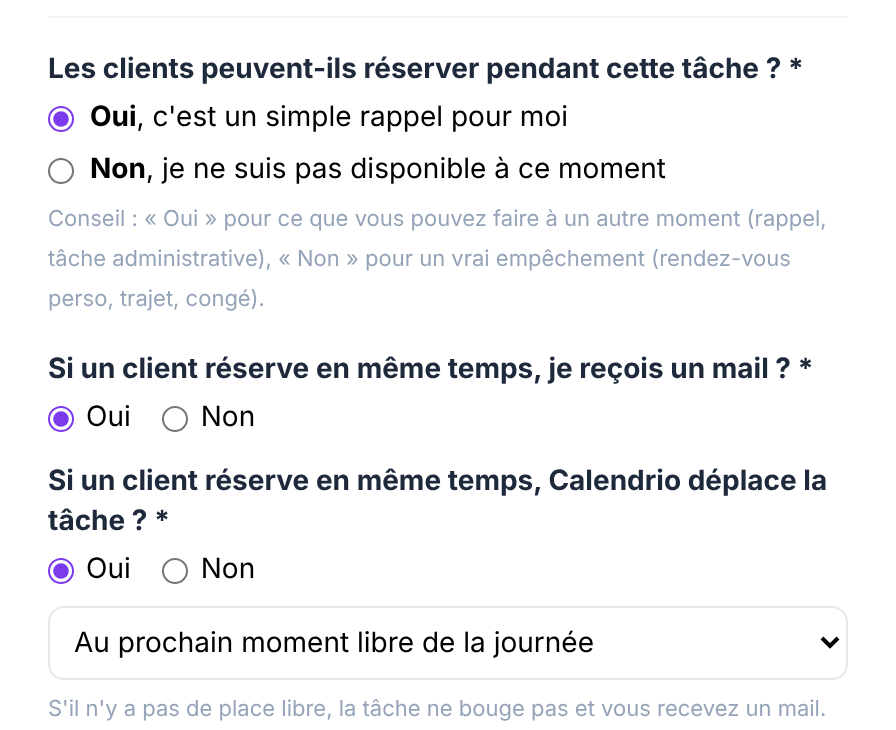
If there’s no free time, the task stays put and Inès receives an email. A “For me” entry can also repeat (every day, every week, every month…), have a location, a video call link, attachments, and it is copied to Google Calendar or Outlook if they are connected (see syncing Google Calendar with your booking tool).
Will my clients really book online?
Some will, not all, and that’s not a problem. For those who call, you add the appointment yourself in “A client”, or you offer them a few times to tick, by email, WhatsApp or SMS, with no account to create.
The booking link remains the way in for those who use it (see Calendrio for wellness practitioners). The poll is for everyone else: those who can’t decide, those who need to check their calendar, those who have no email.
What Calendrio doesn’t do
- It doesn’t send poll WhatsApp messages or texts for you. It opens WhatsApp or your text messages with the message ready; you’re the one who presses “send”.
- No automatic poll reminder for someone without an email address. The halfway reminder goes out by email, to those who haven’t replied yet. For the others, the poll page keeps WhatsApp and SMS buttons to resend the link. Once the appointment is set, the SMS reminder can go to their mobile with a paid plan or the trial; on the Free plan, the reminder only goes out by email, so they won’t get one.
- The search doesn’t follow your opening hours or your time off. By default, it looks Monday to Friday, 9 am to 6 pm, over 7 days. Change this with “Edit” (for a Saturday, for example).
- It doesn’t read outside people’s calendars. Only your calendar, your team’s and your linked accounts’ are checked.
- It doesn’t offer more than 6 times in a poll, or fewer than 2.
Your ongoing polls remain available from the calendar menu (☰ on a phone, left-hand panel on a computer): replies received, “Set this time”, or “Cancel the poll” if you got the number wrong. All of this is included in every plan, including the Free plan. The SMS reminders that Calendrio sends itself before an appointment do require a paid plan or the trial.
Don’t have Calendrio yet? Create your account with this link: a 3-month free trial for any sign-up made through this link until 30 November 2026, no credit card required.
— The Calendrio team
Frequently asked questions
Do people need an account to answer the poll?
My client has no email address. Can they still answer the poll?
What’s the difference between “A client” and “For me”?
Can Calendrio see my guests’ calendars?
Does it cost anything?
What if your calendar filled itself?
With Calendrio, your clients book online 24/7 and receive automatic reminders. 1-month free trial, no credit card required.
Try Calendrio for free