Tracking your TikTok and Google Ads (and Instagram) all the way to the booking
Every platform reports clicks. Here is how to find out, page by page, which ad actually brings you appointments, and how to send those bookings back to TikTok and Google.
You pay for an ad on Instagram, TikTok or Google, and every platform reports clicks. What you really want to know is something else: how many sessions those clicks brought you. To track your TikTok and Google Ads (and your Meta ads) all the way to the booking, you need two things: a table that counts, page by page, where your visitors come from and what they do next; and a connection that sends each platform the bookings it brought you. Calendrio does both, with no code to paste on your page.
This guide shows the real screens, taken from a demo account with fictitious data: where to click, what you will see, what your visitors see, and what Calendrio does not do. It ends with the example of Sarah, a hypnotherapist, who is torn between three ads for the same budget.
Which ad brings me the most appointments: Instagram, TikTok or Google?
The one that shows the most appointments in the “Where do they come from?” row of your showcase page, not the one that shows the most clicks. For that row to exist, each ad must lead to your page through its own tagged link: Calendrio then files every visit, every click on the button and every appointment under the right name.
There is no answer that holds for every practitioner. A sophrologist who films her breathing exercises may fill her page thanks to TikTok; a neighborhood reflexologist may be better served by people who type “foot reflexology” into Google with a real intention to book. The only reliable answer is your own numbers, on your own page. They have one limit you should know: an appointment is linked to the page, and therefore to its source, only if it is booked within two hours of the click on the page's button. Someone who comes back three days later by typing your name into Google will count under “Google search” if they go through your showcase page again, not under the ad that made you known to them; if they go straight to your booking page, that appointment does not appear in any page's funnel.
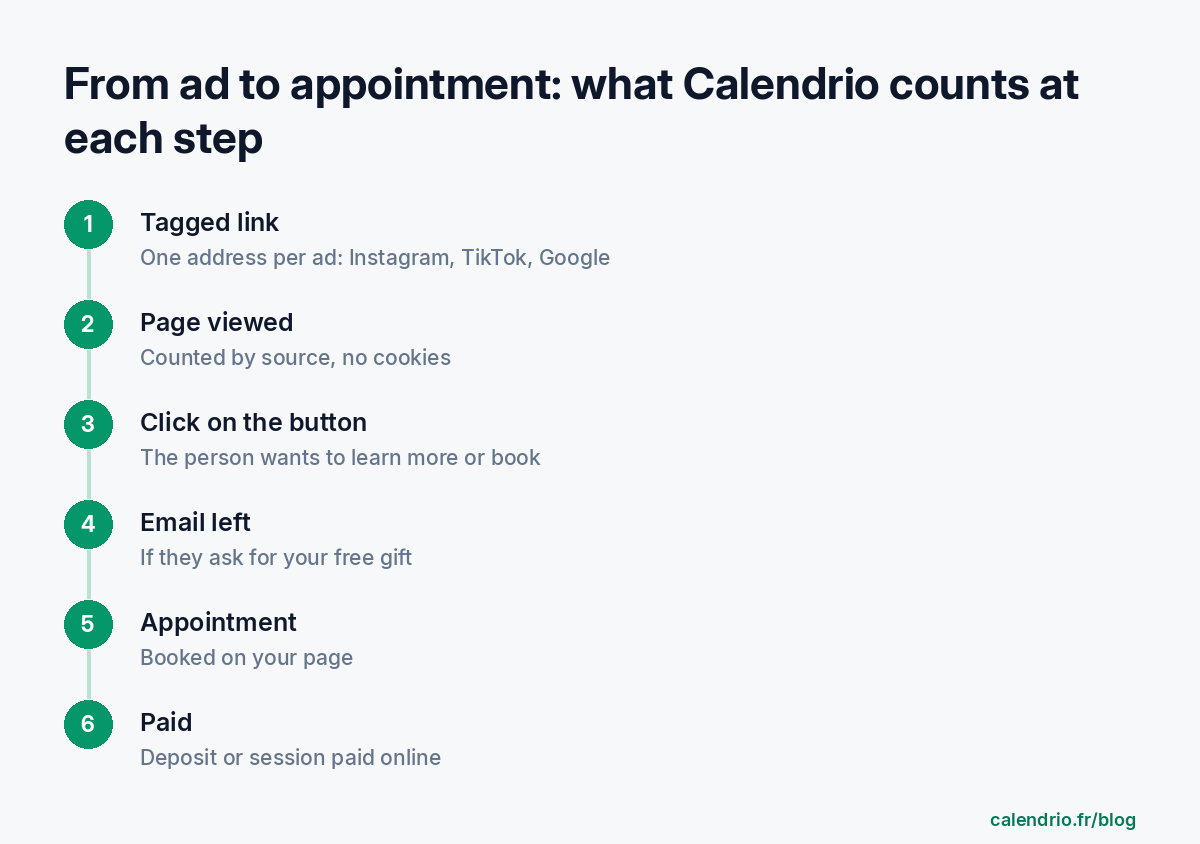
The table to read: the funnel under each page
In Settings, under “My showcase pages”, each live page shows its numbers for the last 30 days. In order, you will find: views, clicks on the button, emails left (if your page offers a free gift), appointments, then those paid online, and finally the share of visitors who booked.
Below that, “Where do they come from?” breaks down views, clicks (and emails left) and appointments by source: Facebook / Instagram ad, TikTok ad, Google ad, Google search, social networks, direct link (bio, message, card), and the name of each tagged link. This table is included in every plan, Free plan included, just like the showcase page itself.
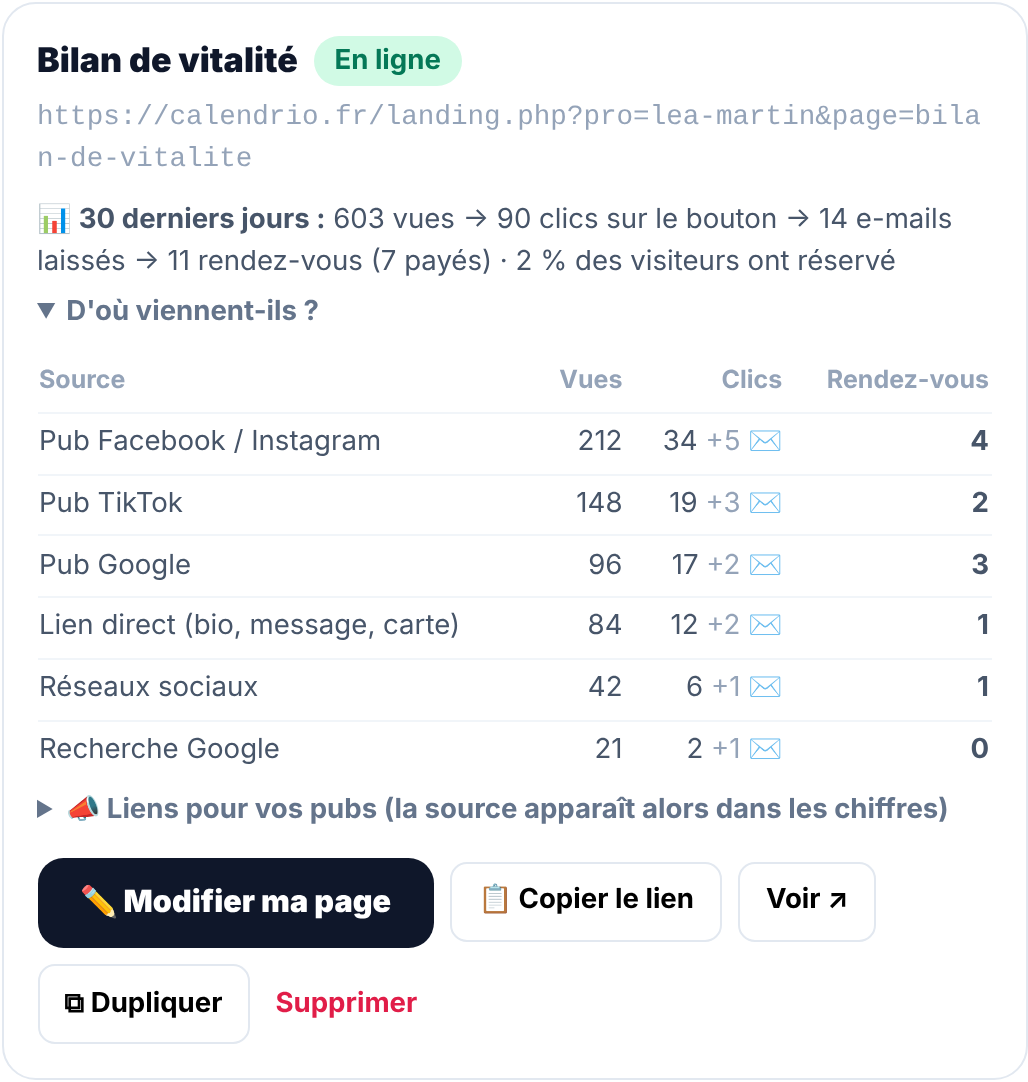
These numbers are counted without cookies and without personal data: Calendrio only keeps daily totals. They therefore cover all your visitors, including those who declined the ad banner (see below). That is the difference with what you will read at Meta, TikTok or Google, which only see the people who accepted.
Step 1: one tagged link per ad
Under each page, the “Links for your ads” panel offers four addresses ready to copy: Instagram, Facebook, TikTok and Google Ads. It is the same link as your page's, with a small tag at the end (a “utm” parameter) that says where the visitor comes from.
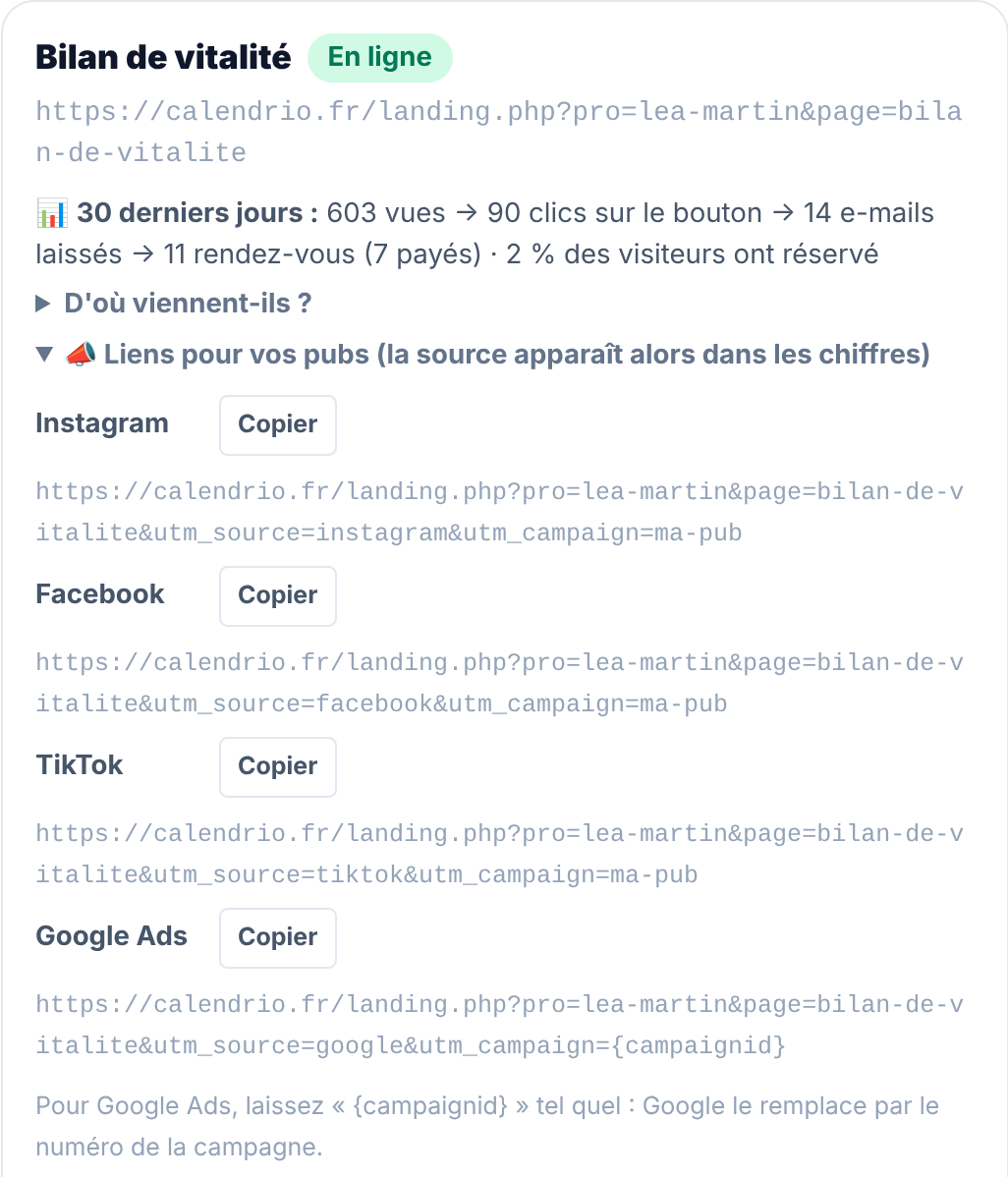
Three simple tips:
- One link per platform. Without a tag, a visit from a Meta ad is filed under “Facebook / Instagram ad”: Calendrio cannot tell the two networks apart. With the Instagram and Facebook tagged links, you see each one separately.
- Google Ads: leave “{campaignid}” as it is. Google replaces it with the campaign number itself.
- The same link everywhere for the same ad. If you change links midway, your numbers get split across two rows.
This step alone is enough to compare your ads in Calendrio, without connecting anything. The next two steps serve another purpose: sending your bookings back to TikTok and Google, so that their algorithms show your ads to the people who actually book.
Step 2: connect TikTok
The setting is in Settings, under “TikTok & Google Ads advertising”. It asks for two pieces of information from your TikTok ad account:
- In TikTok Ads Manager, open “Tools” then “Events”, create (or open) your web pixel and copy its code.
- In that pixel, open “Settings” and generate an access token for the Events API. Copy it.
- Paste both into Calendrio, save, then click “Send a test”. The token is stored encrypted and is never shown again.
- In your TikTok ads, set your showcase page as the destination, with the TikTok tagged link. An ad that leads straight to the booking page is still reported to TikTok, but it does not appear in your showcase page's funnel.
The test code is optional: copied from TikTok's “Test events” tab, it shows you the events as they are sent. Clear it once your tests are done. Menu names in TikTok and Google Ads may change: if they differ, follow what the section in Calendrio says.
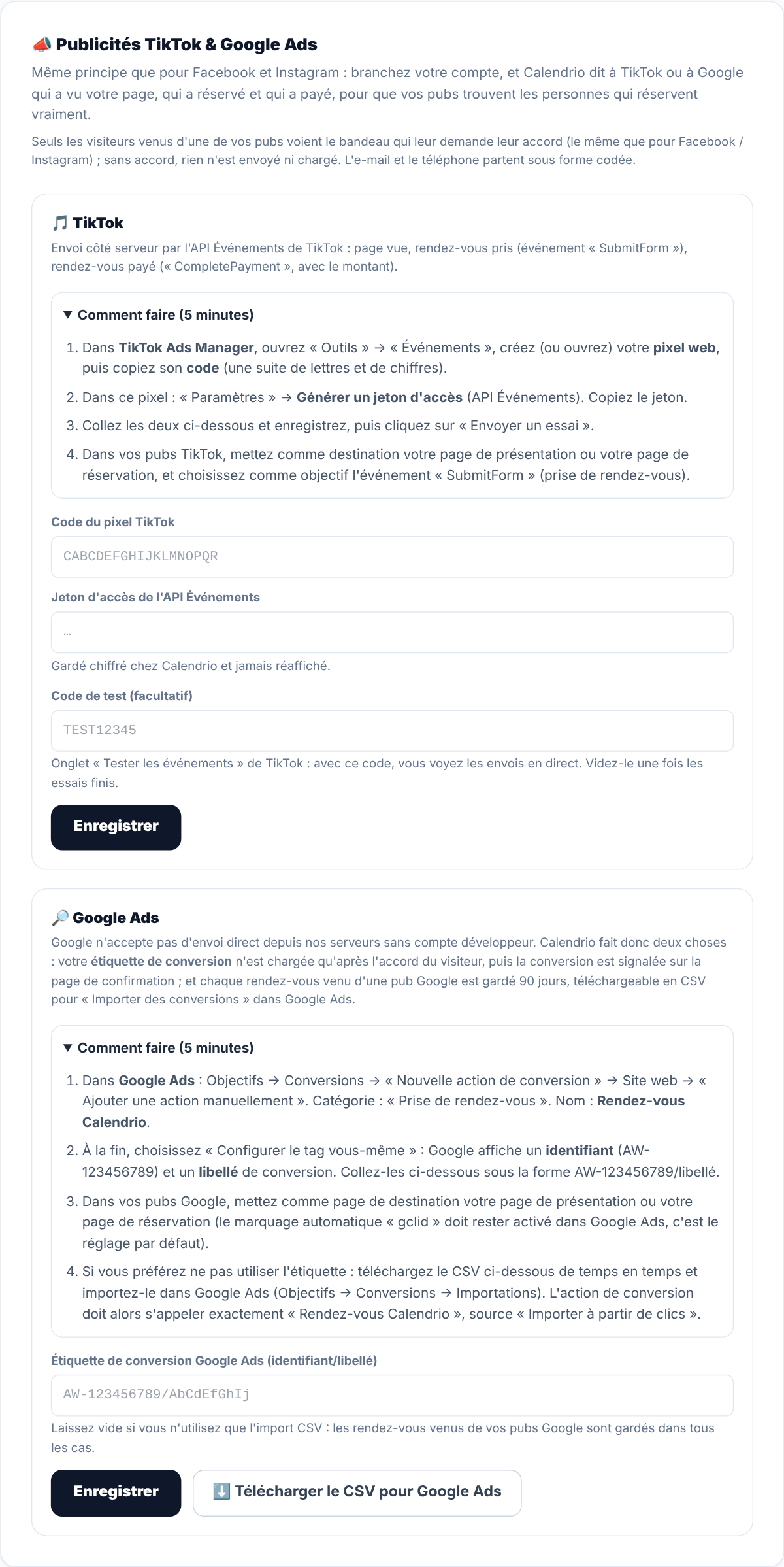
From then on, Calendrio itself sends TikTok, from its servers, four moments: the page view, the appointment booked, the online payment (with its amount) and the email left on your page if it offers a free gift. In TikTok, the appointment and the payment may appear under their new names, “Lead” and “Purchase”: TikTok converts the old event names itself. TikTok describes its Events API as a server-to-server connection and recommends using it together with its pixel. You cannot add a pixel to a Calendrio page: Calendrio uses only the API, which is enough for TikTok to receive your appointments.
Step 3: Google Ads, the tag or the file
Google does not accept direct sending from Calendrio's servers without a developer account. Calendrio therefore offers you two options: your Google Ads conversion tag (the simplest), or a file to import if you do not want a tag. With the tag, the file remains available as a backup.
| Option | What happens | What you do |
|---|---|---|
| Conversion tag (recommended) | Google's script is loaded on your page only after the visitor agrees; the appointment is reported on the confirmation page. | Create the conversion action in Google Ads and paste its ID into Calendrio, once. |
| CSV file | Each appointment from a Google ad is kept for 90 days at Calendrio, ready to import, with no Google script at all on your page. | Without a tag, tick “CSV import only” in Calendrio; then download the file from time to time and import it into Google Ads. |
For the tag, in Google Ads: Goals, Conversions, “New conversion action”, Website, “Add a conversion action manually”. Category “Book appointment”, name “Rendez-vous Calendrio (site)”. At the end, choose to set up the tag yourself: Google shows an ID and a label, which you paste into Calendrio.
In both cases, auto-tagging must stay on in Google Ads (it is the default setting): it is what adds to the link the click ID Google needs to recognize the conversion. The CSV file only covers these standard clicks; Google no longer sends this ID for some clicks from iPhones, which carry a different one, and only the tag passes those on.
Do not count the same appointment twice: if you import the file, do it into a separate conversion action (source “Import from clicks”), named exactly “Rendez-vous Calendrio”, because that is the name written in the file; emails left appear in it as “Rendez-vous Calendrio (e-mail)”, which requires a second action. Keep only one action as the primary goal of your campaigns. In most cases, the tag is enough: Sarah, in the example below, only pastes the tag and does not import the file. The one limit: the tag only reports appointments; emails left on your page reach Google only through the file.
What about Facebook and Instagram?
The principle is the same, in the neighboring “Facebook & Instagram ads” section: a Meta dataset and a token, then a test. Everything is explained, screen by screen, in our guide to measuring your Facebook and Instagram ads. All three connections can run at the same time.
What your visitor sees: a single banner
Reporting that someone viewed your page or booked with you concerns them, so Calendrio asks for their consent first. The banner only appears to visitors who arrived through one of your ads, and only if the matching platform is connected. Everyone else sees none.
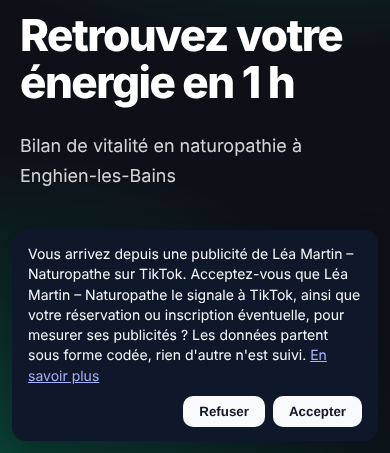
“Decline” and “Accept” are the same size and look the same. That is what the CNIL, the French data protection authority, requires: declining must be as easy as accepting, and a tracker used to measure advertising may not be used without prior consent. If the person declines, nothing is sent or loaded. A single answer applies to every platform during the visit.
If they accept, the platform receives the ad click ID, the IP address and the browser; the email and phone number are sent in encoded form (a fingerprint that cannot be read, but is still personal data). The name, the message left and the service chosen are never sent. For a wellness business, this caution matters: knowing that someone sees a hypnotherapist can say a lot about them. Each platform's advertising rules for health and wellness also apply to your ads: check them before launching a campaign.
Reading the numbers without getting it wrong
Once TikTok or Google is connected, the Settings section shows what was sent to them over 30 days: page views, bookings and payments for TikTok, appointments for Google. If TikTok rejects an event (an expired token, for example), a red message tells you.
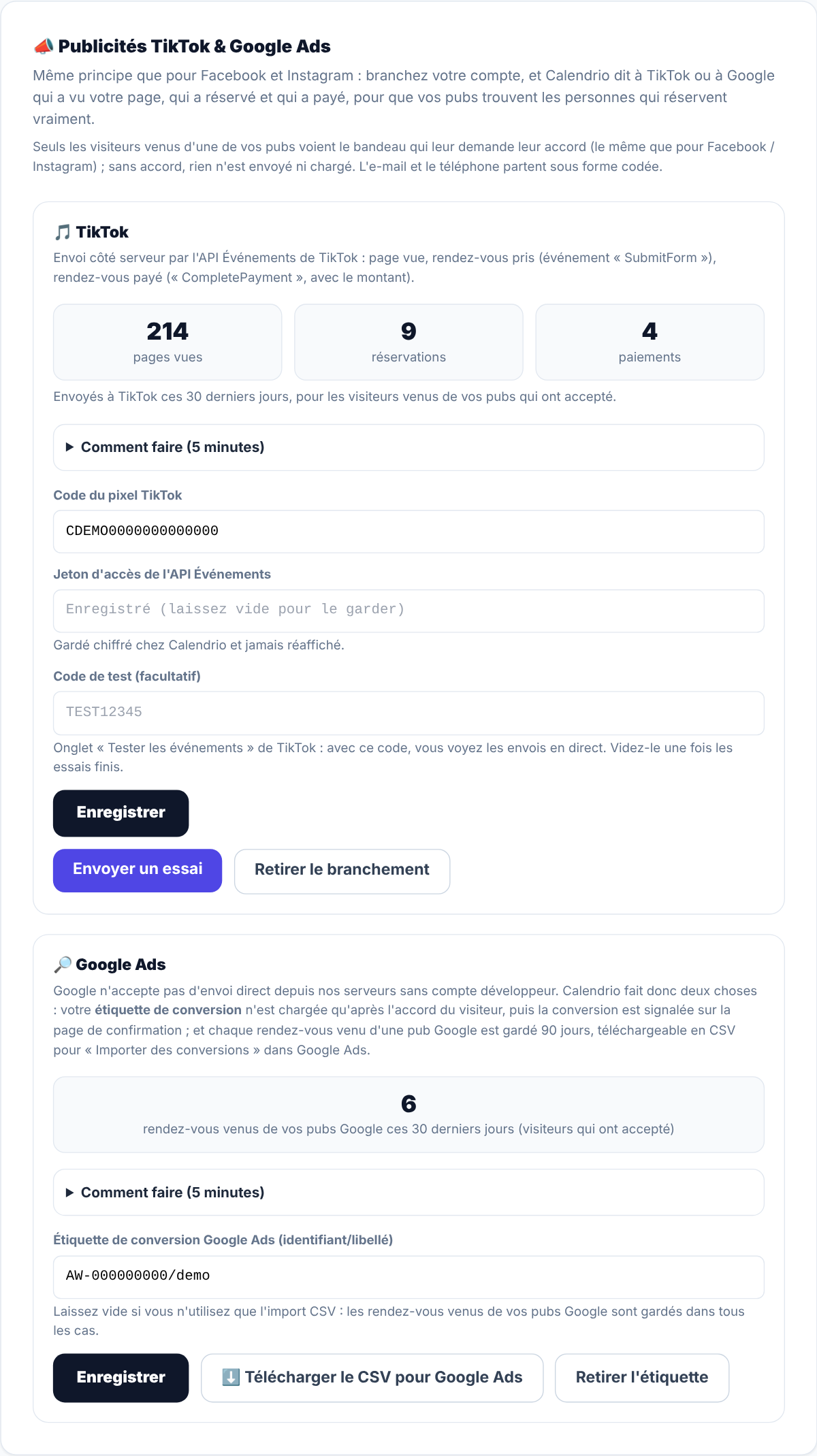
These numbers are not read like the funnel. They only count people who came from an ad within the last 7 days and accepted the banner; on the other hand, they cover all your Calendrio pages (showcase and booking), not just one page. They are mainly there to check that the connection works. To judge your ads, read your page's funnel instead, then the cost per result in each platform's ads manager.
A few useful ways to read the funnel:
| What you see | What it often means | What you can try |
|---|---|---|
| Lots of views, very few clicks on the button | The page does not deliver what the ad promised | Repeat the ad's headline at the top of the page |
| Clicks, but no appointments | Booking gets stuck: price, slots too far ahead, too many questions | Try booking yourself from a phone |
| Emails left, no appointments yet | Interested people, not ready yet | Let the free gift and the email sequence do their work |
| A source with fewer views but more appointments | An audience closer to deciding | Compare the cost per appointment before cutting the other one |
Wait until you have enough visits before drawing conclusions: over a few dozen views, a single appointment more or less changes everything.
Comparing two versions of your page
The “Duplicate” button creates a copy of your page, which you edit separately: a different headline, a different photo, a different offer. Share each version with its own ad, then open the “Compare my pages (last 30 days)” table: it puts views, clicks, emails, appointments and appointments per 100 visits side by side, and the best page is shown in green.
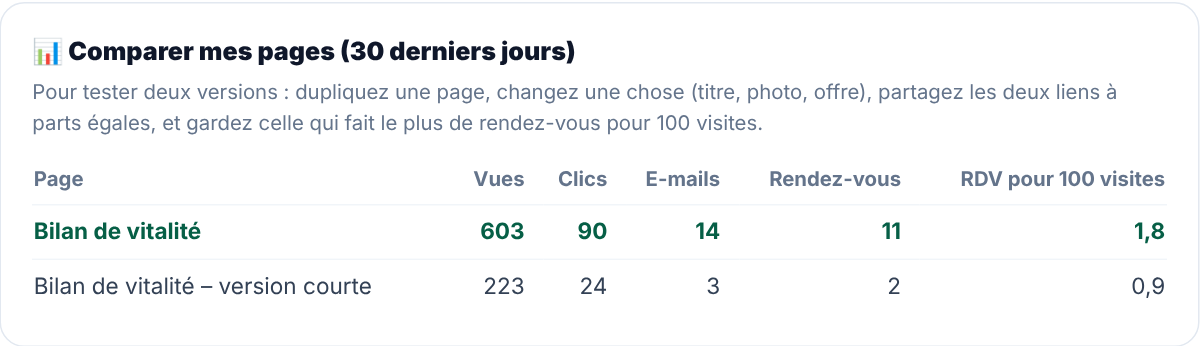
You are the one who splits the visitors, by sharing both links: Calendrio does not automatically send half the traffic to each version.
Example: Sarah, a hypnotherapist torn between three ads
Sarah, a fictional character, is a hypnotherapist who sees clients in her practice and by video. She offers a first session lasting an hour and a half, with an online deposit. She has €150 to spend on advertising this month and does not know where to put it: a short TikTok video in which she explains how a session goes, an Instagram ad aimed at people in her town, and a Google ad for people searching for a hypnotherapist in her town.
She creates a showcase page for her first session, copies the three tagged links, and puts each one in the matching ad. She connects TikTok and the Google tag in ten minutes, without touching the backup file. Then she leaves everything alone for three weeks, and reads a single row: “Where do they come from?”. She does not necessarily keep the ad with the most views, but the one that cost her the least per appointment, dividing what she spent on each platform by the appointments in the matching row.
On her page, Sarah describes how her sessions go without promising results: a promise of healing would be misleading, and every ad network has its own rules for health-related ads. For the other features useful in her line of work, she relies on Calendrio for wellness practitioners.
What Calendrio does not do
- It does not create your ads, set your budget or choose your audience.
- It only tracks your Calendrio pages (showcase and booking): an ad that leads to another website is tracked elsewhere.
- The TikTok, Google Ads and Meta connections require a paid plan or the free trial. On the Free plan, your settings stay saved but nothing is sent; the funnel and tagged links remain available.
- It cannot tell Facebook from Instagram without the tagged links.
- It does not automatically split visitors between two versions of a page.
- It does not guarantee any results: it shows what your ads bring in, it does not make them profitable.
To place these ads within a client's whole journey, from the first visit to the second session, also read how to build a sales funnel when you work by appointment.
Tracking your TikTok and Google Ads: where to start
Start small: one page, one tagged link per ad, and three weeks without changing anything. Connect TikTok or Google only for the platform where you are spending money. You will then know, from your own numbers, where to put next month's budget.
Don't have Calendrio yet? Create your account with this link: 3 months free for any sign-up made through this link until November 30, 2026, no credit card required.
— The Calendrio team
Frequently asked questions
Which ad brings me the most appointments: Instagram, TikTok or Google?
Do I need to install the TikTok pixel on my page?
How do I track appointments that come from Google Ads?
Do my visitors see a banner?
Why are TikTok's or Google's numbers different from my page's?
Are these features included in the Free plan?
What if your calendar filled itself?
With Calendrio, your clients book online 24/7 and receive automatic reminders. 1-month free trial, no credit card required.
Try Calendrio for free- TikTok For Business — À propos de l'API d'événements (consulté le 29/10/2026)
- TikTok For Business — How to Adopt TikTok's Updated Standard Events (consulté le 29/10/2026)
- Aide Google Ads — Updates to iOS 14 campaign measurement (consulté le 29/10/2026)
- Aide Google Ads — Set up offline conversions using Google Click ID (GCLID) (consulté le 29/10/2026)
- CNIL — Questions-réponses sur les lignes directrices modificatives et la recommandation « cookies et autres traceurs » (consulté le 29/10/2026)