Shared calendar for a practice of practitioners: one common page, separate accounts
A sophrologist, a naturopath and a reflexologist in the same room: how to avoid double bookings without mixing clients, payments and invoices. The settings, and what the tool does not do.
Claire is a sophrologist, Inès a naturopath, Marc a reflexologist. They rent the same room. Their practice is imaginary, their problem is not: a client asks Inès for Thursday at 10 a.m., and nobody knows whether Marc has already taken that slot. A shared calendar for a practice of practitioners has to answer that question without showing Inès Marc's clients. Let's follow their setup, setting by setting, with what Calendrio does and what it does not do.
Shared calendar for a practice of practitioners: not everything is shared
Three things get mixed up in a shared practice. The room is shared. The clients and the money are not: Claire, Inès and Marc are three businesses, with their own prices, invoices and cancellation rules.
A shared Google Calendar looks like the obvious solution. Depending on the permission you choose, it shows only free/busy information or all event details, names included. Set to free/busy, it protects names. What remains is to give clients a page to book on, and to make sure that page takes the room into account.
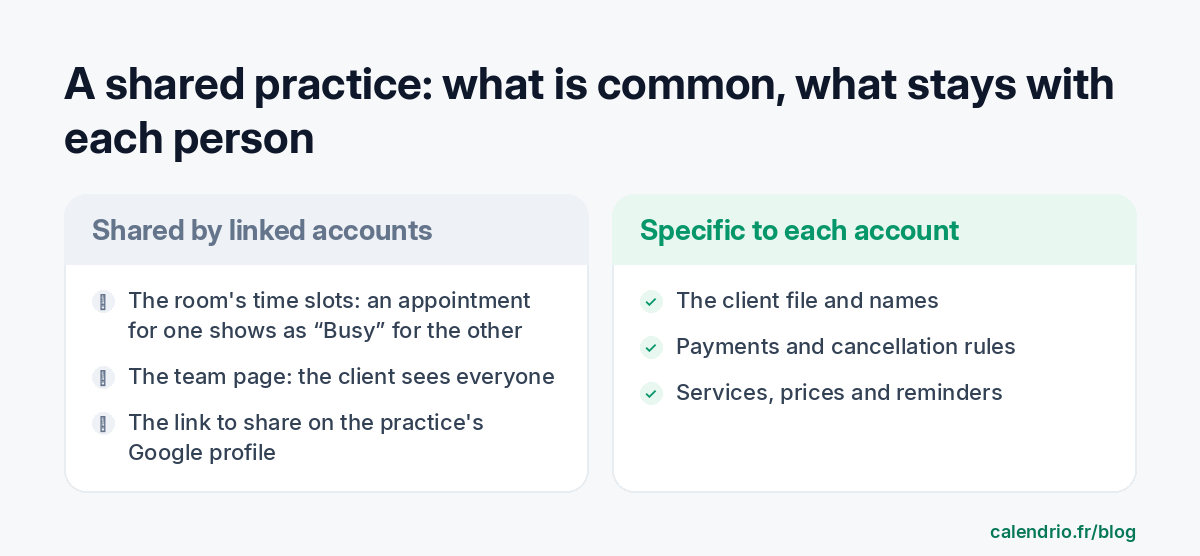
Calendrio offers two ways to work together. They are not aimed at the same people.
| Team plan | Linked accounts | |
|---|---|---|
| For whom | One business and its staff | Independents working side by side |
| Accounts | A single account, several people | One account per practitioner |
| Clients | In the same account; a Staff member sees only their own calendar | Each has their own; the others see “Busy” |
| Online payments | Through the account's Stripe | Through each person's own Stripe |
| Price | €79 excl. VAT per month, 5 people included | Included in every plan, Free included |
Claire, Inès and Marc each take their own payments: linked accounts are what they need. A salaried team, on the other hand, should rather look at the shared calendar for a team.
How many appointments and people can I manage?
Calendrio does not cap the number of appointments booked on your booking page, whatever your plan. As for people, an account can be linked to 10 others at most, 5 of which can block its time slots: so a single room can be shared by 6 practitioners at most.
The other limits depend on each person's plan. On Free: 2 services and 30 contacts. On Pro: no limit on either. Only appointments created through the API or the connector have a monthly quota: 10 on Free, 200 on Pro and during the trial, 1,000 on Team. For a practice of three, none of this gets in the way of getting started, and each person can keep the plan that suits them.
Monday morning: the settings, account by account
Each person first creates their own account. The invitation is then sent from Settings → Linked accounts (on a new account, go through “Advanced settings”), using the other person's login email: if there is no account at that address, it is not sent. The other person receives an email and accepts from their settings.
Three practitioners, three links. Claire invites Inès and Marc, then Inès invites Marc. Links are not passed on: if Inès and Marc are not linked to each other, Marc's appointments close nothing for Inès, even if they are both linked to Claire. With four people, you need six links.
One box on each side. On each link, each person checks for themselves that “Their appointments block my time slots” stays ticked: it is ticked by default. If Marc unticks it, his page keeps offering the time when Inès is seeing a client.
One person hosts the page. Claire ticks “Show their calendar on my booking page” for Inès and for Marc, and enters their specialty. The “Our team” section appears on her page, and the team page link is shown in her settings, ready to copy.
The same name for the same service. If Claire and Inès both offer a “Discovery session”, with the same name and the same spelling, the team page merges them into a single service, with the price range. Written differently, they are two lines.
To decide together, in ten minutes: who hosts the page, who books the room on Saturdays, how much time to leave between two sessions, and who tells whom when an appointment is added by hand.
What the client sees, what the colleague sees
On the team page, the client chooses a service, a day and a time from everyone's availability. They can filter by specialty. If several people are free, they choose who with. The booking is then completed on that person's page: their terms, their deposit, their payment.
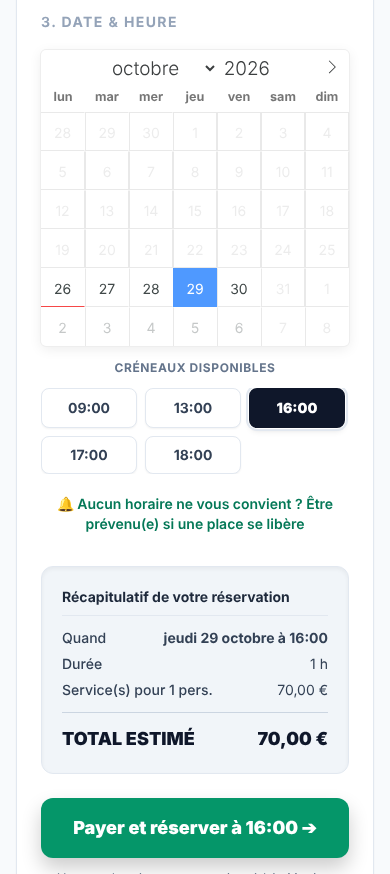
So Inès can ask for a deposit, and Marc for payment on site. The appointment stays in the account where it was booked, with its client and its payment.
In Claire's calendar, one of Marc's appointments appears as “Busy · Marc”, with no client name or details. If each person keeps their client file on their own side, no names circulate. There is an option to show a linked account your number of appointments and your revenue over 30 days: it is unticked by default.
One detail about the team page: a member on Free shows 2 services there, a member on a paid plan or on trial shows them all. If the account hosting the page is on the Team plan, all its members' services are shown, even on Free.
What Calendrio does not do for a shared practice
Better to know this before you start. Linked accounts are genuinely useful, but they do not manage a room.
- Linked accounts block accounts, not rooms. With two rooms for three practitioners, it does not count which ones are still free. Link only those who share the same room, or split the days using each person's working hours.
- Blocking applies to all of the other person's appointments. A video session Inès runs from home also closes the slot for Claire. The setting cannot be adjusted appointment by appointment.
- No time is kept between two accounts. The break between appointments applies within one account. If Marc finishes at 11 a.m., 11 a.m. can be offered on Claire's page. Marc, who changes his towels and airs the room, therefore sets his session to 1 h 15 and says so in the description: a 1-hour session, 15 minutes to prepare the room.
- Only Calendrio appointments and group sessions with attendees block. A colleague's Google event is shown as “Busy”, unless they hide it, but does not close your slots. Nor does a task. Whatever occupies the room must be entered as an appointment, or in a Google or Outlook calendar connected to each of the accounts.
- An appointment added by hand is not checked against your colleagues' appointments. The warning only covers your own calendar. Look at the “Busy” blocks before confirming.
- Nothing covers the rent. Calendrio does not calculate each person's room hours and does not split any costs.
The slot is checked again just before a booking is saved, but no tool replaces a simple agreement between you. Keep an easy way to warn each other in case of an overlap.
Before sharing: the lease, the data, the Google profile
The lease. Renting your room to a fellow practitioner may count as subletting. Under French law, with a professional lease, it is allowed unless the contract forbids it, and the landlord must be informed in writing. With a commercial lease, it is forbidden unless there is a clause to the contrary or the landlord agrees; if irregular, it exposes the tenant to a termination claim. With a mixed lease, combining housing and business, it is forbidden without the landlord's written consent. Have your situation reviewed by a notary or a lawyer.
The data. As long as each person keeps their own file, each is in principle solely responsible for it. If you decide together on a shared file, you may become joint controllers within the meaning of Article 26 of the GDPR, with an agreement between you, preferably in writing. The CNIL website, or a specialist adviser, will help you assess your case.
The Google profile. Google accepts one profile per practitioner who is in direct contact with the public and reachable on site during the stated hours. When several practitioners work at the same place, the location can have its own separate profile, and the practitioner's profile carries only their name. A displayed address requires permanent signage in the business's name. The team link belongs on the practice's profile, and yours on your own profile.
- Share the room's time slots, not the clients or the payments.
- Between independents, choose linked accounts rather than a shared account.
- Create a link between every pair of practitioners, and check blocking on both sides.
- Include the room changeover time in the session length.
- Check your lease before subletting.
What Calendrio brings to a shared practice
Calendrio gives each person their own booking page, reminders and payments, and gives the practice a common page. Linked accounts are included in every plan. The free plan is enough to try it out together; the Pro plan, at €39 excl. VAT per month, removes the limit on services and contacts, and adds SMS reminders. More examples by profession are on the wellness practitioners page.
Create your free account, then invite a colleague: until 30 November 2026, the trial goes from one month to three months with this link, with no credit card and no commitment.
Frequently asked questions
How many appointments and people can I manage?
Can my practice colleague see my clients' names?
Do I need a paid plan to link two accounts?
Can Calendrio book a shared room between practitioners?
What happens if I leave the practice?
What if your calendar filled itself?
With Calendrio, your clients book online 24/7 and receive automatic reminders. 1-month free trial, no credit card required.
Try Calendrio for free- Service-public Entreprendre — Contrat de bail professionnel (vérifié le 13/05/2026)
- Service-public Entreprendre — Sous-location du bail commercial (vérifié le 03/06/2025)
- Légifrance — Code de commerce, article L145-31
- Légifrance — Loi du 6 juillet 1989, article 8 (en vigueur au 05/11/2026)
- Légifrance — Code civil, article 1717
- CNIL — RGPD, chapitre IV, article 26 (responsables conjoints)
- Google — Consignes de représentation d'une entreprise (consulté le 06/11/2026)
- Aide Google Agenda — Choisir ce que les autres utilisateurs peuvent faire dans votre agenda (consulté le 06/11/2026)