Manage the members of an association: sessions, fees, attendance
Sessions only your members can see, fees tracked, an attendance sheet, rights for the treasurer: Calendrio's Members' area, followed over one season of a sophrology association.
To manage the members of an association, many organisers juggle a spreadsheet, emails sent one by one and a chat group where information gets lost. Calendrio now has an option for this: the Members' area. It brings together, in one place, the list of members, sessions that only they can see, the membership fee and the attendance sheet.
To see it in action, let's follow one season with Nadia, an imaginary sophrologist. Besides her practice, she runs an association, also imaginary, called “Souffle & Détente”: group sophrology sessions on Thursday evenings, in a room lent by the town hall. Breathing exercises, dynamic relaxation, a time to talk at the end. Around twenty places. Nadia opened a Calendrio account in the association's name, separate from her practice's account.
Before: everything rested on Nadia
Every September, it was the same story. The members' spreadsheet on one side, the notebook of fee cheques on the other. A reminder email the day before each session, copied by hand. And the usual question in the chat group: “It's this Thursday, right?”
Nadia wanted three things. For members to see the calendar without it being public. To know at a glance who has paid. To stop writing the list of who came on a scrap of paper.
Manage association members with the Members' area
It is an option you switch on, or not, from Groups & Spaces. As long as it is off, nothing changes for you or your clients. It is available during the trial and with all paid plans, like group sessions; it is not included in the Free plan.
When you switch it on, you tick a box: you confirm that you tell your members their contact details, attendance and fees are managed with Calendrio, and, if belonging to the group can reveal sensitive data, that you have the right to process it (the box's “Learn more” link explains this point). Then the page is organised in tabs: Members, Member groups, Membership fee, Attendance and Settings. The Members, Member groups, Membership fee and Attendance tabs each have their own “easy to read” guide, with an example: an option for a club, an association or a private group must be easy for any volunteer to pick up.
September: members receive their link
Nadia opens the “Members” tab: the first time, the add box is already open (otherwise, “+ Add members” opens it). Most of her members are already in her contacts: she ticks them, then clicks the green button just below, “Add 12 contacts and send their link”. For a new person, a first name and an email address are enough.
Each member immediately receives an email with their personal link. For those who were already members, “Send each member their link” sends the link to everyone again. When a member opens their link, they receive a 6-digit code at their email address, valid for 15 minutes. They type it in, and their calendar appears. Their browser is then recognised for 30 days.
Before the code, the page shows nothing: not the association's name, not a single session. So a link forwarded to someone else is not enough. If a link gets passed around anyway, “Create a new link” makes the old one unusable.
The 2nd and 4th Thursday: sessions only members can see
In Groups & Spaces, Nadia creates her session “Thursday evening sophrology”, 7 pm, 20 places. As the session is included in the membership, she leaves the “Free” box ticked. The association only meets twice a month: in “Open days”, she ticks only Thursday; in “Only certain days of the month?”, she ticks “2nd” and “4th”. The session then falls on the 2nd and 4th Thursday of every month, without typing anything again.
Finally, she ticks “Members only”. Visitors to her booking page do not see this session; the page's AI assistant does not suggest it either. Her “Discovery workshop”, open to all and paid, stays visible to attract new members.
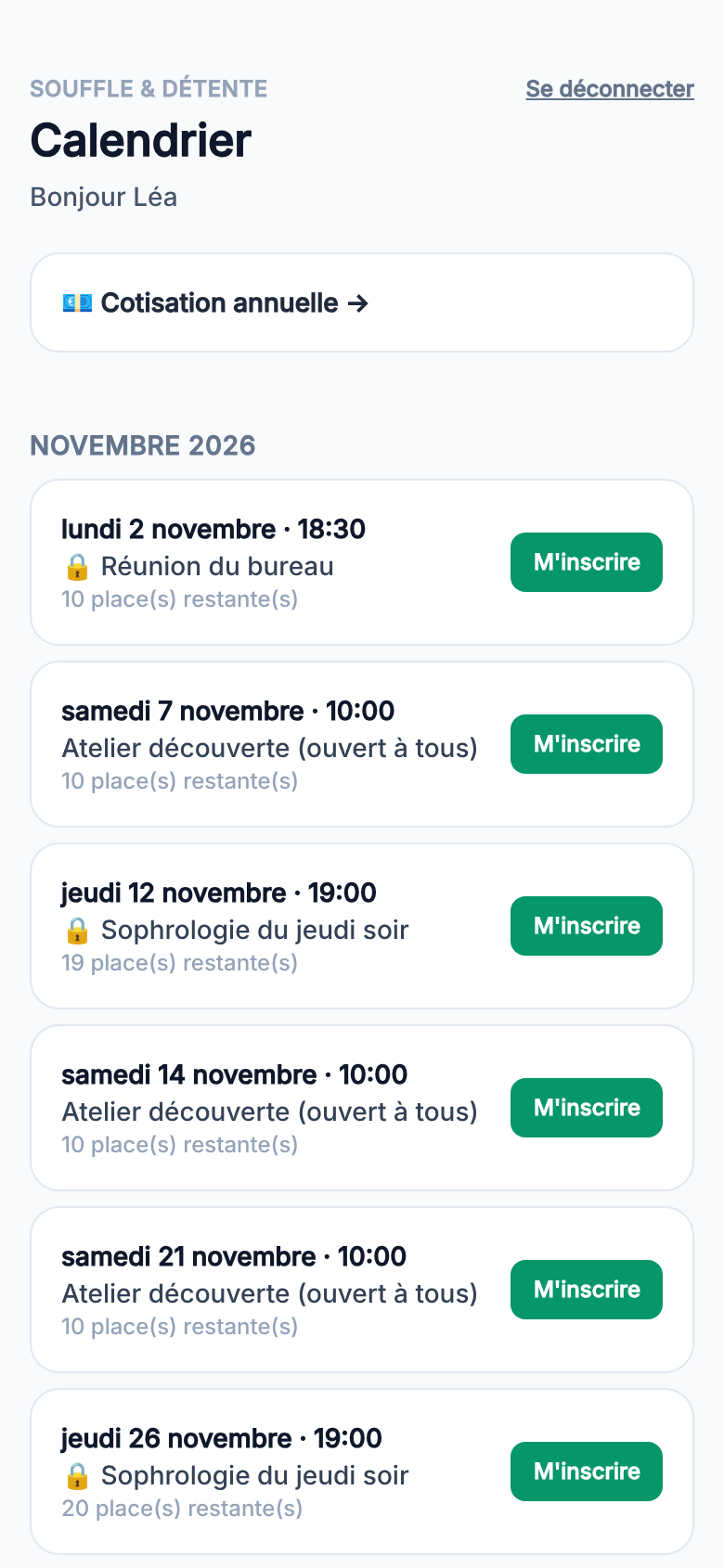
The member picks a date and clicks “Sign up”: the form opens with her first name, last name and email already filled in. If Nadia allows cancellation, once the member is signed up, a “Cancel my registration” link appears under “Signed up”.
October: membership fees, without chasing anyone
In the “Membership fee” tab, Nadia sets things up once: the name (“Annual membership fee”), the amount (€40) and the period (“Per year”; there are also half-year, quarter and month). Each member then gets a coloured label:
- green, “Up to date until…”: the end date of the paid period;
- red, “Due since…”: the period is over, it needs renewing;
- orange, “Never paid”: no payment recorded.
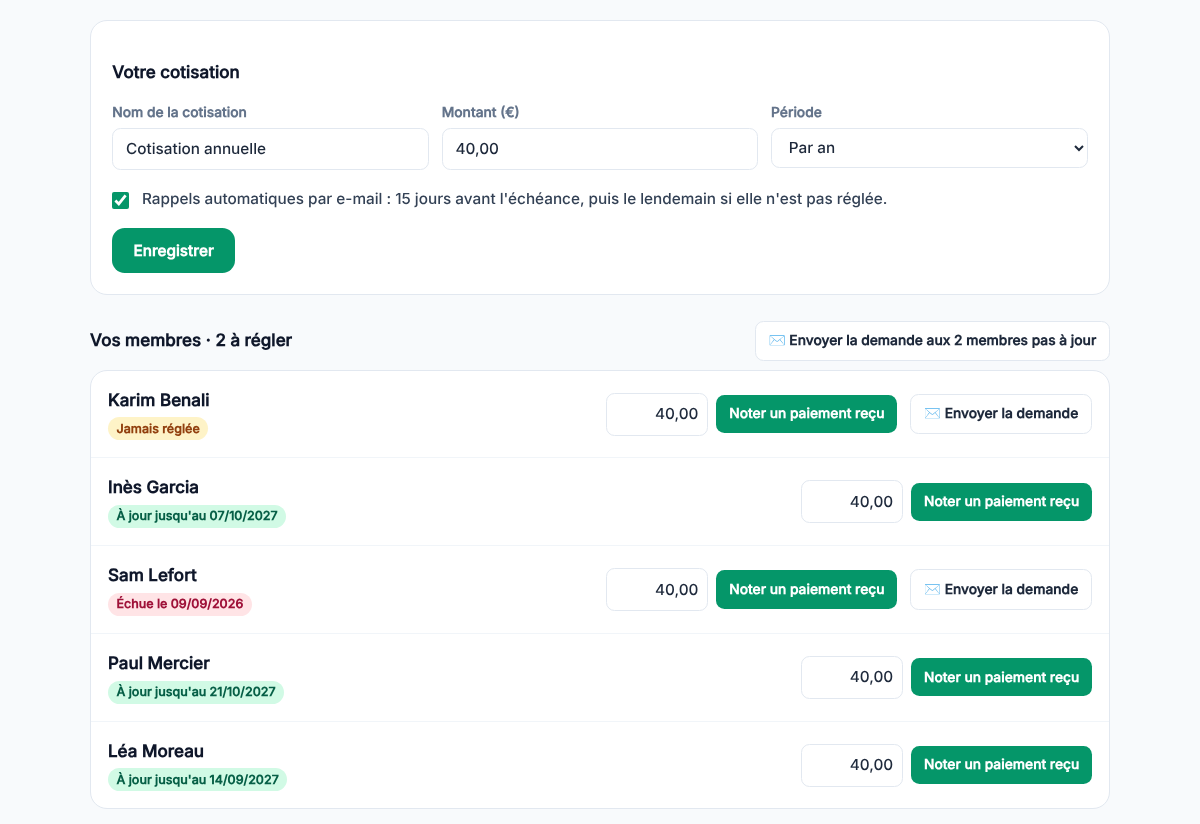
Inès hands over a cheque at the end of a session? Nadia clicks “Record a payment received” next to her name. A one-year period starts on the day of payment: paid on 8 October 2026, Inès is up to date until 7 October 2027.
For the others, “Send the request” sends them an email with a link to their membership fee. If Nadia has turned on “Receive my payments online” in her Settings, the member pays by card and the money goes straight to the association's Stripe account. Calendrio takes no commission on paid plans or during the trial; Stripe charges its own fees.
She also ticks the automatic reminders: an email 15 days before the due date, then another one the day after if it has not been paid. They are off at the start: you decide.
The evening of the session: the attendance sheet
“Attendance” tab: Nadia picks the session and the date, then clicks “Show the sheet”. The sheet lists the people signed up that day and all members (or only those of one group). She ticks the people who came and clicks “Save the sheet”.
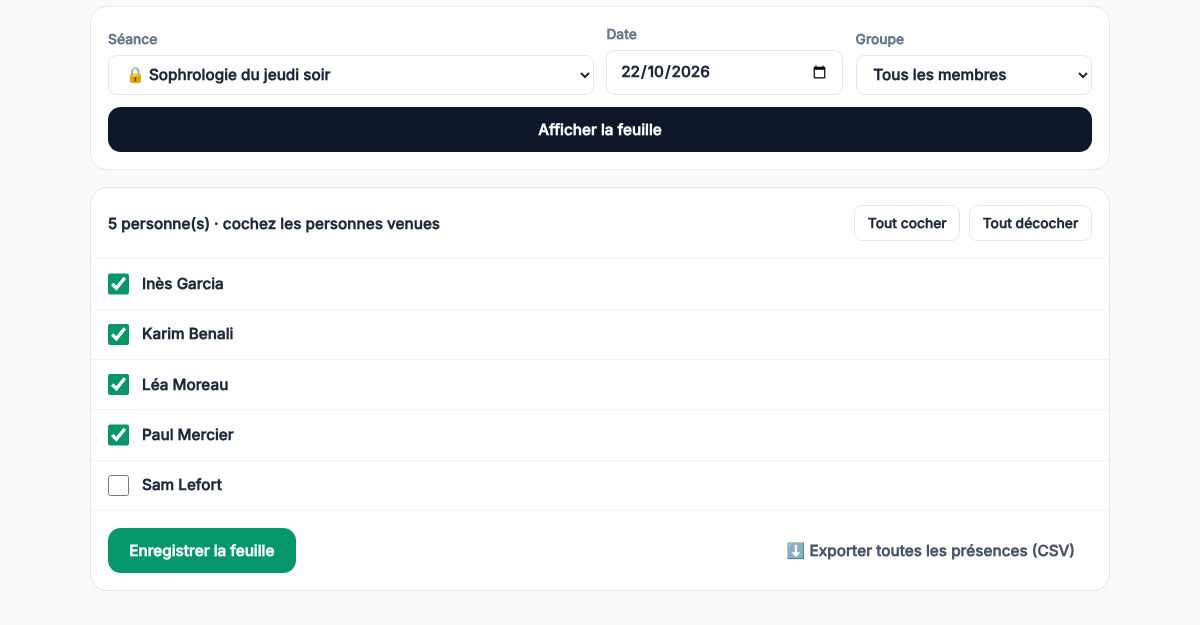
In the “Members” tab, each member then shows their number of attendances over 12 months. Attendance, membership fees and the list of members can be exported as a CSV file, for the treasurer's spreadsheet or for the annual general meeting report.
The committee, the general meeting and the team
Nadia creates a member group called “Committee” with Léa and Inès. A member group is a list of people; not to be confused with the Groups & Spaces page, which lists sessions. A member can be in several groups.
For the committee meeting, she creates a session of the “Meeting / Event” type: it works like a class, but people are called participants. She ticks “Members only”, then the “Committee” group in “Visible to these member groups”. Only Léa and Inès see this meeting; the other members do not. If no group is ticked, all members see the session: that is what she does for the annual general meeting, on the last Saturday of November.
To let a group know, “Write to this group” opens an email campaign already filtered on its members. And to find a date that suits the whole committee before creating the meeting, the free-time poll does the job.
Inès is the treasurer. Nadia does not want to give her the whole account. With the Team or Business plan (or during the trial), she adds her as a team member, then on the Team → 🔑 Rights page gives her only the right “manage membership fees”. Inès sees the fees, not the attendance. Two other rights exist: “manage members and groups” and “take attendance”. Only the account administrator can switch the option on or off.
Privacy: what a visitor sees
A visitor who lands on the association's booking page sees the workshop open to all, and nothing else. Members-only sessions do not appear in a Calendrio client account either: they can only be seen in the member's calendar, after the code.
If the association does not want to be found on Google at all, Settings → Network & visibility offers “Hide my pages from Google”. Google then removes the booking page and the presentation pages from its results the next time it visits those pages; according to Google, that visit can take from a few days to several months. People then get there through the link, or through the Calendrio directory if you appear in it. To avoid that too, untick “Appear in the Calendrio directory”, right next to it.
What the Members' area does not do
- No direct debit. The member pays each period, online or in person. Reminders help, but nothing is taken without them.
- No accounting. Calendrio tracks who has paid and until when; the association's accounts are done elsewhere, from the CSV export.
- An email address is needed. The access code arrives by email. A member without an email can be added if they are already in your contacts. They can be marked present or up to date with their fee, but they cannot open their calendar or receive reminders.
Where to start
Open Groups & Spaces, then the “Members' area” link: the small “ⓘ What is it?” bubble explains it in three sentences. Switch the option on, add two or three members (you can add yourself to test), create a “Members only” session, then open your own link: you will see exactly what your members will see.
Do you run group sessions alongside your practice? The page for wellness practitioners presents the rest of Calendrio, and Classes and webinars explains sessions for several people.
Don't have Calendrio yet? Create your account with this link: 3 months of free trial for any sign-up made through this link until 30 November 2026, no bank card needed. The Members' area is available during the trial.
— The Calendrio team
Frequently asked questions
How do I manage my association's members and membership fees?
Do my members need to create an account?
Does Calendrio take a commission on membership fees?
Can a session be seen by only one group of members?
Is the Members' area included in the Free plan?
What if your calendar filled itself?
With Calendrio, your clients book online 24/7 and receive automatic reminders. 1-month free trial, no credit card required.
Try Calendrio for free